<div style="padding:15px 15px 2px 20px; border-radius:2px; margin-bottom:20px; border:1px solid #ddd">

<callout>
<p style="margin-bottom:0.75em"><b>Licensing</b></p>!!
A Spine license is [required](/git/spine-runtimes/spine-unity#licensing) to integrate the Spine Runtimes into your applications.
</callout>

<div style="font-size: 1.6em; margin: 0 0 .5em;">spine-unity Runtime Documentation</div>!!
* [Installation](/spine-unity-installation)
* [Examples](/spine-unity-examples)
* [Assets](/spine-unity-assets)
* [Main Components](/spine-unity-main-components)
* [Utility Components](/spine-unity-utility-components)
* [Rendering](/spine-unity-rendering)
* [Timeline Extension UPM Package](/spine-unity-timeline)
* [On-Demand Loading Extension UPM Packages](/spine-unity-on-demand-loading)
* [FAQ](/spine-unity-faq)
</div>!!

# Rendering

## Materials

![](/img/spine-runtimes-guide/spine-unity/raptor-atlas-page.png)

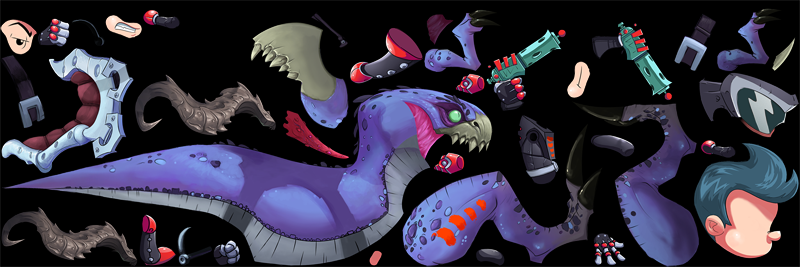
Each atlas page Texture requires its own Material, which is automatically created upon skeleton import. When using Slot blend modes other than `Normal`, additional Materials are created for each blend mode as well (except for `Additive` when using PMA, which can be rendered with the normal material). The Materials array of a MeshRenderer is managed by the [SkeletonRenderer](/spine-unity-main-components#SkeletonRenderer-Component) every frame, depending on the currently assigned attachments and the AtlasAssets these are contained in, and the used blend mode at the Slot.
> **Note:** Direct modifications to the Materials array have no effect as they will be overwritten in the following `LateUpdate()` call. Use a [SkeletonRendererCustomMaterials](/spine-unity-utility-components#SkeletonRendererCustomMaterials) or [SkeletonGraphicCustomMaterials](/spine-unity-utility-components#SkeletonGraphicCustomMaterials) component to override materials. You can also assign different Materials at the *_Atlas* asset to change Materials for all instances. After any *_Atlas* asset modification you may need to hit `Reload` at the `SkeletonData Asset` parameter of your `SkeletonRenderer` component to reload the skeleton using the new atlas materials.

> **Note:** Only use Materials with a `Spine/SkeletonGraphic*` shader with `SkeletonGraphic` components. Do not use URP, LWRP or normal shaders like `Spine/Skeleton` with a `SkeletonGraphic` component. See [SkeletonGraphic - Important Material Requirements](/spine-unity-main-components#Important-Material-Requirements) for details.

### Material Switching and Draw Calls

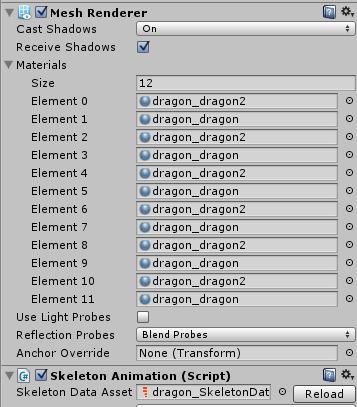
If assigned attachments are distributed across multiple atlas pages or have different blend modes, e.g. material `A` and material `B`, the Materials array is set according to the draw order in which the materials are needed.

If the order is:
> 1. Attachment from A
> 2. Attachment from A
> 3. Attachment from B
> 4. Attachment from A

The resulting material array will be:
> 1. Material A (for attachments 1 and 2)
> 2. Material B (for attachment 3)
> 3. Material A (for attachment 4)

Every material in the Materials array corresponds to a [draw call](http://docs.unity3d.com/Manual/DrawCallBatching.html). Therefore a high amount of material switching adversely affects performance.

The Dragon example shows an unfortunate use case with many draw calls: 
![](/img/spine-runtimes-guide/spine-unity/render_spineunity_alternatingmaterials.png)

It is therefore recommended to pack attachments to as few atlas pages as possible, and to group attachments to atlas pages according to draw order to prevent unnecessary material switching.
Please see [Spine Texture Packer: Folder Structure](/spine-texture-packer#Folder-structure) on how to arrange atlas regions in your Spine atlases.

### Changing Materials Per Instance

> **Note:** Direct modifications to the [SkeletonRenderer](/spine-unity-main-components#SkeletonRenderer-Component)'s Materials array have no effect as they will be overwritten in the following `LateUpdate()` call. If none of the methods below are suitable, you can manually override `MeshRenderer.Materials` every frame by using the [`SkeletonAnimation.OnMeshAndMaterialsUpdated`](/spine-unity-main-components#Life-cycle) callback delegate. This callback is called at the end of `LateUpdate()` after atlas materials have been assigned.

#### CustomMaterialOverride and CustomSlotMaterials
[SkeletonRenderer](/spine-unity-main-components#SkeletonRenderer-Component) allows you to override Materials on specific slots or override the resulting materials.

To replace an original material with your new material at runtime for an instance of [SkeletonRenderer](/spine-unity-main-components#SkeletonRenderer-Component), you can use `SkeletonRenderer.CustomMaterialOverride`:
```csharp
// Use the following code to programmatically query the original material, see note below.
// MeshRenderer.material will not work, MeshRenderer.sharedMaterial might fail in some cases.
if (originalMaterial == null)
	originalMaterial = skeletonAnimation.SkeletonDataAsset.atlasAssets[0].PrimaryMaterial;

skeletonAnimation.CustomMaterialOverride[originalMaterial] = newMaterial; // to enable the replacement.
skeletonAnimation.CustomMaterialOverride.Remove(originalMaterial); // to disable that replacement.
```

> **Note:** Don't use `originalMaterial = skeletonAnimation.GetComponent!lt!MeshRenderer!gt!().material` as `.material` returns an instance copy of your primary Material, not the Material itself. It is also not recommended to use `originalMaterial = skeletonAnimation.GetComponent!lt!MeshRenderer!gt!().sharedMaterial`, as it might return null when the primary Material is not assigned yet, e.g. when the active frame has no active attachments or when called too early.

To use a replacement Material on just a specific slot, you can use `SkeletonRenderer.CustomSlotMaterials`:
```csharp
skeletonAnimation.CustomSlotMaterials[slot] = newMaterial; // to enable the replacement.
skeletonAnimation.CustomSlotMaterials.Remove(slot); // to disable that replacement.
```

#### Tinting Skeletons while retaining batching

Using different `Materials` or `MaterialPropertyBlocks` on skeleton instances breaks batching. If you only need to tint individual skeleton instances differently and require no other material property modifications, you can use the `Skeleton.R .G .B .A` color properties. For tinting to be applied, [`Advanced - PMA Vertex Colors`](/spine-unity-main-components#Setting-Advanced-Parameters) must be enabled at the SkeletonRenderer Inspector.
```csharp
public Color color = Color.white;
...
skeleton = GetComponent<SkeletonRenderer>().Skeleton;
...
skeleton.R = color.r;
skeleton.G = color.g;
skeleton.B = color.b;
skeleton.A = color.a;
```
These skeleton color values will set vertex colors and don't affect your Material properties.

Same applies for tinting individual attachments:
```csharp
slot = skeleton.FindSlot(slotname);
...
slot.R = slotColor.r;
slot.G = slotColor.g;
slot.B = slotColor.b;
slot.A = slotColor.a;
```
> **Note:** When your animations modify attachment color values, be sure to set any Slot color values after the animations have been applied by using e.g. the [SkeletonAnimation.UpdateComplete](/spine-unity-main-components#Life-cycle) callback.

#### MaterialPropertyBlocks

![](/img/spine-runtimes-guide/spine-unity/materialpropertyblock-demo.gif)  

You can use [Renderer.SetPropertyBlock](http://docs.unity3d.com/ScriptReference/Renderer.SetPropertyBlock.html) to override material property values for a single `MeshRenderer`.

```csharp
MaterialPropertyBlock mpb = new MaterialPropertyBlock();
mpb.SetColor("_FillColor", Color.red); // "_FillColor" is a named property on the used shader.
mpb.SetFloat("_FillPhase", 1.0f); // "_FillPhase" is another named property on the used shader.
GetComponent<MeshRenderer>().SetPropertyBlock(mpb);

// to deactivate the override again:
MaterialPropertyBlock mpb = this.cachedMaterialPropertyBlock; // assuming you had cached the MaterialPropertyBlock
mpb.Clear();
GetComponent<Renderer>().SetPropertyBlock(mpb);
```

> **Note:** Parameter names used at a `MaterialPropertyBlock`, such as `_FillColor` or `_FillPhase`, have to match the name of the respective shader variable. Note that the shader variable name is not the name displayed in the Inspector, such as `Fill Color` and `Fill Phase`. To view the shader parameter names, you can open the `.shader` file (via the Material's gear icon menu, select `Edit Shader`) and have a look at the top-most secion called `Properties { .. }`. There you will find a listing of all parameters. In a parameter line like the following, it is the **leftmost** name `_FillColor`:
```
_FillColor ("Fill Color", Color) = (1,1,1,1)
^^^^^^^^^^
```
Shader variable names typically start with an `_` character, and they never contain any spaces. The strings next to it like `"Fill Color"` is what is displayed in the Inspector.


You can find a demonstration of per-instance material properties in the example scene `Spine Examples/Other Examples/Per Instance Material Properties`.

> **Notes on optimization**
> - Using Renderer.SetPropertyBlock with different Material values will break batching between renderers. Batching will take place between renderers when MaterialPropertyBlock parameters are equal, e.g. all setting tint color to the same green color.
> - You need to call `SetPropertyBlock` whenever you change or add a property value to your MaterialPropertyBlock. But you can keep that MaterialPropertyBlock as part of your class so you don't have to keep instantiating a new one whenever you want to change a property.
> - When you need to set a property frequently, you can use the static method: `Shader.PropertyToID(string)` to cache the int ID of that property instead of using the string overload of MaterialPropertyBlock's setters.  

## Transparency and Draw Order

All spine-unity shaders use alpha blending to cleanly draw semi-transparent transitions at borders of attachments. Without alpha blending (using a hard transparency threshold) hard jagged outlines would be the result, similar to aliasing artifacts.

Unfortunately, alpha blending presents classical problems as the z-buffer cannot be used for automatic depth sorting. Instead, triangles need to be rendered in back-to-front order, painting parts over each other. Each [SkeletonRenderer](/spine-unity-main-components#SkeletonRenderer-Component) generates it's mesh accordingly, with triangles following the [Slot draw order](/spine-basic-concepts#Slots) defined in Spine. Within a single mesh, even a single draw call will paint correctly ordered skeleton parts.

Between meshes, spine-unity utilizes many of Unity’s render order systems to determine what mesh should be on top of which. Using the standard spine-unity setup, whole skeleton meshes are rendered in an order determined by multiple factors:

1. **[Camera depth](http://docs.unity3d.com/ScriptReference/Camera-depth.html).** *Relevent in multi-camera setups.*
1. **Material.renderQueue.** *When set, it overrides the shader's `Queue` tag.*
1. **Shader's `Queue` tag.** *Defaults to `"Transparent"` queue in `Spine` shaders as other sprites.*
1. **[Sorting Group](https://docs.unity3d.com/ScriptReference/Rendering.SortingGroup.html) components.** *When placed on the MeshRenderer's GameObject or on any of the parents GameObjects.*
1. **Renderer's [SortingLayer](https://docs.unity3d.com/ScriptReference/SortingLayer.html) and [SortingOrder within a layer](https://docs.unity3d.com/ScriptReference/Renderer-sortingOrder.html).**
1. **Distance from the camera.** *Cameras can be configured whether [planar or perspective distance is used](http://docs.unity3d.com/ScriptReference/Camera-transparencySortMode.html).*

If a scene's renderers are in the same sorting layer and order and the shader `Queue` tags are equal, you can control sorting of your Spine GameObjects via distance to the camera. Note that cameras provide a [transparencySortMode](http://docs.unity3d.com/ScriptReference/Camera-transparencySortMode.html) property.

### Sorting Layer and Order in Layer

The inspector of a [SkeletonRenderer](/spine-unity-main-components#SkeletonRenderer-Component) provides `Sorting Layer` and `Order in Layer` properties which actually modify the `MeshRenderer`'s [sortingLayerID](http://docs.unity3d.com/ScriptReference/Renderer-sortingLayerID.html) and [sortingOrder](http://docs.unity3d.com/ScriptReference/Renderer-sortingOrder.html) properties. These properties are stored as part of `MeshRenderer` and are not part of `SkeletonRenderer`.

You can access these properties via code:
```csharp
GetComponent<MeshRenderer>().sortingOrder = 1; // Change the Order in Layer to 1. 
```

### Preventing Incorrect Sorting

![](/img/spine-runtimes-guide/spine-unity/incorrect-sorting.png)

Especially when using an orthographic camera, it may occur that skeletons using multiple atlas pages are sorted incorrectly.
You can counter this by adding a [Sorting Group](https://docs.unity3d.com/ScriptReference/Rendering.SortingGroup.html) component to the skeleton GameObject. Another workaround is to rotate the camera by a tiny amount, e.g. set the camera's transform rotation Y value to 0.001.

### Objects Between Skeleton Parts

![](/img/spine-runtimes-guide/spine-unity/skeleton-render-separator-spineboy.png)

You may want to display other GameObjects between parts of your character, e.g. to let your character run into a tree and display one leg in front and one behind the trunk.

spine-unity provides a [SkeletonRenderSeparator](/spine-unity-utility-components#SkeletonRenderSeparator) component for the purpose of splitting a skeleton into multiple parts.

### Fading a Skeleton In or Out

Unfortunately, alpha blending will cause back parts of your skeleton show through when lowering the alpha value of your skeleton to make it semi-transparent. This is a common problem due to transparency being applied when each triangle is drawn.

![](/img/spine-runtimes-guide/spine-unity/CommonError-AlphaFadeOut-Comparison.png)

One solution to this problem is to use a temporary [RenderTexture](https://docs.unity3d.com/Manual/class-RenderTexture.html). 
You can render the whole character to the RenderTexture at normal opacity and then draw the content of this RenderTexture to your scene at the desired fade opacity. You can use the provided [SkeletonRenderTexture](/spine-unity-utility-components#SkeletonRenderTexture) and [SkeletonRenderTextureFadeout](/spine-unity-utility-components#SkeletonRenderTextureFadeout) example components for this purpose. You can find a demonstration of these components in the example scene `Spine Examples/Other Examples/RenderTexture FadeOut Transparency`.

Note that this is only one of many ways to achive a fade-out effect. There may be other easier solutions such as gradually tinting the skeleton with a solid color, decreasing scale, etc. Existing 2D games may serve as valuable inspiration, as RenderTextures are a costly solution that has rarely been used in the past.

## Shaders

![](/img/spine-runtimes-guide/spine-unity/stretchyman-only-small.png)

The spine-unity runtime includes several different shaders. By default, the `Spine/Skeleton` shader will be assigned at a newly imported skeleton Material. You can change the shader via the Material's Shader parameter as usual. Below you will find a list of included Spine shaders.

> **Important Note:** Use only special `CanvasRenderer` compatible shaders with **`SkeletonGraphic`** components. See [SkeletonGraphic - Important Material Requirements](/spine-unity-main-components#Important-Material-Requirements) for details.

> **Important Note:** The spine-unity runtime package provides only [**Built-In Render Pipeline**](https://docs.unity3d.com/Manual/built-in-render-pipeline.html) shaders, which are not compatible with [**Universal Render Pipeline**](https://unity.com/srp/universal-render-pipeline) projects. If you're using Universal Render Pipeline, please use the provided URP shaders of the [Spine URP Shaders extension UPM package](#URP-Shaders-Extension-Package) instead.

> **Note:** [*Deferred Shading rendering path*](https://docs.unity3d.com/Manual/RenderTech-DeferredShading.html) is not yet supported by Spine shaders.

1. **Spine/Skeleton** *(Default Shader)*  
	Unlit transparent shader. Does not write to the z-buffer.
1. **Spine/Skeleton Graphic** *(Default shader for SkeletonGraphic)*  
	Unlit transparent shader used by [SkeletonGraphic](/spine-unity-main-components#SkeletonGraphic-Component). Does not write to the z-buffer. Does not support `Additive` blend mode when used with a `CanvasGroup`, when required use `Spine/Skeleton Graphic Tint Black` instead. Limited to a single texture because of CanvasRenderer limitations.
1. **Spine/Skeleton Lit**  
	Simple lit transparent shader, no normal map support. Does not write to the z-buffer.
1. **Spine/Skeleton Lit ZWrite**  
	Simple lit transparent shader, no normal map support. Writes to the z-buffer.
1. **Spine/Skeleton Fill**  
	Unlit transparent shader with customizable color overlay. Does not write to the z-buffer.  
	`FillColor` determines the overlay color, `FillPhase` the color overlay intensity.  
1. **Spine/Skeleton Tint**  
	Unlit transparent shader with customizable two-color tint, tinting dark colors separately from light colors, called [tint black](/spine-slots#Tint-black).	Does not write to the z-buffer.  
	
	The texture's lighter colors are tinted with `Tint Color`, the texture's darker colors with `Black Point` color. This allows a tinted texture to be brighter than its original color, compared to ordinary multiply color blending. When setting both `Tint Color` and `Black Point` to the same color it will result in a solid color overlay. When setting `Tint Color` to black and `Black Point` to white, the texture color will be inverted.
1. **Spine/Skeleton Tint Black**  
	![](/img/spine-runtimes-guide/spine-unity/tint-black-demo.gif)
	
	Unlit transparent shader with Spine-animated per-slot [tint black](/spine-slots#Tint-black) feature.
	Does not write to the z-buffer.  
	Spine provides a [Tint Black](/spine-slots#Tint-black) feature for slots, allowing animated black tint.  
	
	Required additional setup step (for tint color vertex data):
	- Enable `Tint Black` in the [SkeletonAnimation](/spine-unity-main-components#SkeletonAnimation-Component)'s inspector in the `Advanced` section:  
	![](/img/spine-runtimes-guide/spine-unity/skeletonanimation-inspector-tintblack.png)
1. **Spine/Skeleton Tint Black Additive**  
	Unlit transparent shader with Spine-animated per-slot [tint black](/spine-slots#Tint-black) feature.
	Uses additive blend mode.
	Does not write to the z-buffer.
1. **Spine/SkeletonGraphic Tint Black**  
	Variant of `Spine/Skeleton Tint Black` shader for [SkeletonGraphic](/spine-unity-main-components#SkeletonGraphic-Component). Supports `Additive` blend mode when used with a `CanvasGroup`.  
	
	Required additional setup steps (for tint color vertex data):
	1. Enable `Tint Black` in the [SkeletonAnimation](/spine-unity-main-components#SkeletonAnimation-Component)'s inspector in the `Advanced` section.
	2. Set the Material of the [SkeletonGraphic](/spine-unity-main-components#SkeletonGraphic-Component) to the `SkeletonGraphicTintBlack` material located in the respective subfolder of `Spine/Runtime/spine-unity/Materials` which suits your PMA or Straight alpha texture workflow, with or without CanvasGroup support.  
	![](/img/spine-runtimes-guide/spine-unity/skeletongraphictintblack-material.png)
	3. Select the parent Canvas and under `Additional Shader Channels` enable `TexCoord1` and `TexCoord2`.  
	![](/img/spine-runtimes-guide/spine-unity/unity-canvas-texcoord1-texcoord2.png)

	Required additional setup steps for `Additive` blend mode at a `CanvasGroup`:
	1. a) spine-unity 4.2 and newer: Enable `CanvasGroup Compatible` at the [SkeletonGraphic](/spine-unity-main-components#SkeletonGraphic-Component) inspector in the `Advanced` section.  
	b) on older versions: Enable `Canvas Group Tint Black` at the [SkeletonGraphic](/spine-unity-main-components#SkeletonGraphic-Component) inspector in the `Advanced` section.
	2. Enable `CanvasGroup Compatible` at the shader.
1. **Spine/Sprite**  
	Sophisticated configurable shaders, allowing for more advanced lighting than the `Spine/Skeleton Lit` shader.
	You can find a demonstration of the `Spine/Sprite/Vertex Lit` shader in the example scene `Spine Examples/Other Examples/Sprite Shaders`.
	1. **Spine/Sprite/Unlit**  
		Unlit shader with configurable blend mode, overlay color, hue, saturation and brightness adjustments. Configurable to write to z-buffer. Fog support.
	1. **Spine/Sprite/Vertex Lit**  
		Sophisticated vertex-lit shader with configurable blend mode.  
		Supports normal maps, secondary albedo, metallic and emission maps.  
		Configurable color ramp for cel-shaded look and rim lighting based on normals.  
		Configurable overlay color, hue, saturation and brightness adjustments.  
		Configurable to write to z-buffer. Fog support.  
	1. **Spine/Sprite/Pixel Lit**  
		Pixel-lit variant of `Spine/Sprite/Vertex Lit` shader. The only shader that receives per-pixel realtime shadows.
		This shader always writes to the z-buffer (`ZWrite` is enabled as it uses a `ForwardAdd` pass).
1. **Spine/Special**
	1. **Spine/Special/Skeleton Grayscale**  
		Unlit transparent shader for grayscale rendering with customizable intensity. Does not write to the z-buffer.
	1. **Spine/Special/Skeleton Ghost**  
		Special shader used by [SkeletonGhost](/spine-unity-utility-components#SkeletonGhost) component for trail rendering.
1. **Spine/Blend Modes**  
	Intended for slots that have blend modes `Additive`, `Multiply` and `Screen` assigned in the Spine editor. It is recommended to automatically assign blend mode materials on import via the [SkeletonData Blend Mode Materials](/spine-unity-assets#Skeleton-Data).
	1. **Spine/Blend Modes/Skeleton PMA Additive**  
		Unlit transparent shader. Uses additive blend mode. Does not write to the z-buffer.
	1. **Spine/Blend Modes/Skeleton PMA Multiply**  
		Unlit transparent shader. Uses multiply blend mode. Does not write to the z-buffer.
	1. **Spine/Blend Modes/Skeleton PMA Screen**  
		Unlit transparent shader. Uses screen blend mode. Does not write to the z-buffer.
1. **Spine/Outline**  
	All shaders above provide an `Outline` parameter which can be enabled to switch to the respective `Spine/Outline` shader variant, drawing an additional colored outline around the skeleton.
	You can find a demonstration of the `Spine/Outline` shaders in the example scene `Spine Examples/Other Examples/Outline Shaders`.
	1. **Spine/Outline/OutlineOnly-ZWrite**
		A special single-pass shader rendering only the outline. Writes to the z-buffer for proper outline occlusion at overlapping attachments. Can also be used when your skeleton requires multiple materials, where normal outline shaders will incorrectly outline each submesh instead of the whole skeleton. You can use e.g. the [`RenderCombinedMesh`](/spine-unity-utility-components#RenderCombinedMesh) component to re-render your combined skeleton mesh with this outline-only shader to add the outline behind your skeleton. 

### Post Processing Effects

Some post processing effects like Depth of Field (DoF) require the shader to write to the z-buffer (to be more precice, to a depth pre-pass depth buffer). Some of the Spine shaders provide a `Depth Write` (also called `ZWrite`) parameter which can be enabled at the material, others write to the z-buffer by default. See the documentation above about which of the provided Spine shaders write to the z-buffer.

Depending on the project's Graphics settings (or Render Pipeline Asset Settings respectively), it might not be sufficient that the shader writes to the z-buffer, e.g. when using `URP-HighFidelity` as Render Pipeline Asset. In this case you also need to change the `Render Queue` of the Material from `Transparent` to `AlphaTest`.

If you feel limited by the provided shaders, you can also create your own modified copy of a Spine shader and change any lines reading `ZWrite Off` to `ZWrite On` (occurring in each Pass section) and change tags `"Queue"="Transparent"` to `"Queue"="AlphaTest"`. Don't forget to change the name of the shader in the first line of the file to avoid name clashes.

### URP Shaders Extension Package

Universal Render Pipeline (URP) shaders are provided as a separate UPM (Unity Package Manager) package. See section [Optional Extension UPM Packages](/spine-unity-installation#Optional--Extension-UPM-Packages) on how to download and install this package and section [Updating an Extension UPM Package](/spine-unity-installation#Updating-an-Extension-UPM-Package) on how to update it.

The URP Shaders UPM package provides shaders specifically built for Unity's Universal render pipeline, including 2D Renderer functionality.

> **Note:** Do not use URP Shaders with `SkeletonGraphic` components. See [SkeletonGraphic - Important Material Requirements](/spine-unity-main-components#Important-Material-Requirements) for details.

> **Note:** [*Deferred Rendering Path*](https://docs.unity3d.com/Packages/com.unity.render-pipelines.universal@12.0/manual/rendering/deferred-rendering-path.html), which has recently been added to the Universal Render Pipeline, is not yet supported by Spine URP shaders.

**Shaders for URP with 2D Renderer** *(do not use with URP (3D) Forward Renderer)*
1. **Universal Render Pipeline/2D/Spine/Skeleton**  
	Universal 2D renderer variant of the `Spine/Skeleton` shader.
1. **Universal Render Pipeline/2D/Spine/Skeleton Lit**  
	Universal 2D renderer variant of the `Spine/Skeleton Lit` shader.
1. **Universal Render Pipeline/2D/Spine/Sprite**  
	Universal 2D renderer variant of the `Spine/Sprite/Vertex Lit` and `Pixel Lit` shaders.

**Shaders for URP with 3D Forward Renderer** *(do not use with URP 2D Renderer)*
1. **Universal Render Pipeline/Spine/Skeleton**  
	Universal variant of the `Spine/Skeleton` shader.
1. **Universal Render Pipeline/Spine/Skeleton Lit**  
	Universal variant of the `Spine/Skeleton Lit` shader. Can be configured to receive per-pixel realtime shadows.
1. **Universal Render Pipeline/Spine/Sprite**  
	Universal variant of the `Spine/Sprite/Vertex Lit` and `Pixel Lit` shaders. Receives per-pixel realtime shadows.
1. **Universal Render Pipeline/Spine/Outline/Skeleton-OutlineOnly**  
	Universal variant of the `Spine/Outline` shaders. URP does not allow multiple passes per shader, so it requires a separate material. You might want to consider the [`RenderExistingMesh`](/spine-unity-utility-components#RenderExistingMesh) component, as demonstrated in the `com.esotericsoftware.spine.URP-shaders/Examples/Outline Shaders URP` example scene included in this package. If your skeleton requires multiple materials, you can use the [`RenderCombinedMesh`](/spine-unity-utility-components#RenderCombinedMesh) component instead of the `RenderExistingMesh` component.
	
The shaders can be assigned to materials as usual and will respect your settings of the assigned `UniversalRenderPipelineAsset` under `Project Settings - Graphics`.

You can find a demonstration of the URP shaders in the example scenes within the directory `com.esotericsoftware.spine.URP-shaders/Examples` inside the UPM package:  
`3D/URP 3D Shaders.unity`, `2D/URP 2D Shaders.unity` and `Outline Shaders URP.unity`.

### LWRP Shaders Extension Package

Lightweight Render Pipeline (LWRP) shaders are provided as a separate UPM (Unity Package Manager) package. See section [Optional Extension UPM Packages](/spine-unity-installation#Optional--Extension-UPM-Packages) on how to download and install this package and section [Updating an Extension UPM Package](/spine-unity-installation#Updating-an-Extension-UPM-Package) on how to update it.

The LWRP Shaders UPM package provides shaders specifically built for Unity's lightweight render pipeline.

> **Note:** Do not use LWRP Shaders with `SkeletonGraphic` components. See [SkeletonGraphic - Important Material Requirements](/spine-unity-main-components#Important-Material-Requirements) for details.

1. **Lightweight Render Pipeline/Spine/Skeleton**  
	Lightweight variant of the `Spine/Skeleton` shader.
1. **Lightweight Render Pipeline/Spine/Skeleton Lit**  
	Lightweight variant of the `Spine/Skeleton Lit` shader.
1. **Lightweight Render Pipeline/Spine/Sprite**  
	Lightweight variant of the `Spine/Sprite/Vertex Lit` and `Pixel Lit` shaders.

The shaders can be assigned to materials as usual and will respect your settings of the assigned `LightweightRenderPipelineAsset` under `Project Settings - Graphics`.

You can find a demonstration of the LWRP shaders in the example scene `com.esotericsoftware.spine.lwrp-shaders-4.2/Examples/LWRP Shaders.unity` in the extracted package.

### Shader Graph

Currently there are no official Shader Graph Spine shaders or shader nodes available. Note that when exporting your textures from Spine using [Straight alpha](/spine-unity-assets#Premultiplied-vs-Straight-Alpha-Export) settings, you should be able to use any non-Spine shader available. In case you want to replicate a feature that only the Spine shaders have to offer, please have a look at the [forum](/forum/?q=shader+graph) for postings like these [[1](/forum/Shader-Graph-with-Normal-Map-and-Diffuse-Ramp-15755)], [[2](/forum/Adding-normals-to-a-Shader-Graph-15077)]. If you have any questions, you can always start a new forum thread in the Unity subforum.

### Amplify Shader Editor

While there is no officially provided shader template for the Amplify Shader Editor, user `Hana` has kindly shared template code on the forum [here](/forum/Spine-Shader-Template-for-Amplify-16267?p=71176#p71176).

### Writing your own shaders

Please first familiarize with how to write custom shaders for Unity [in general](https://docs.unity3d.com/2020.1/Documentation/Manual/ShadersOverview.html). Especially [Tutorial: vertex and fragment programs](https://docs.unity3d.com/2020.1/Documentation/Manual/SL-ShaderPrograms.html) provides a good overview, allowing you to more easily understand what the individual parts of spine-unity shaders are doing.

#### Starting from an existing spine-unity shader

It is highly recommended to start with a copy of an existing spine-unity shader. You can then gradually modify an already working shader to adjust it to achieve the desired effect. You can for example add additional color processing before returning the final color. The following code shows a short example on how to create a modified version of the `SkeletonGraphic` shader extended by grayscale functionality:

```
Properties
{
    _GrayIntensity("Intensity", Range(0, 1)) = 1 // this line was added to provide a Material property
    [..]
}
```
```
sampler2D _MainTex;
float _GrayIntensity; // this parameter was added
..
fixed4 frag (VertexOutput IN) : SV_Target
{
    ..
    color.rgb = lerp(color.rgb, dot(color.rgb, float3(0.3, 0.59, 0.11)), _GrayIntensity); // this line was added
    return color;
}
```

#### Caveats when using non-Spine shaders or visual shader editors

Be sure to consider the following differences between typical spine-unity shaders and other non-Spine shaders:

1. **Backface culling must be disabled** by setting `Cull Off` when rendering any Spine skeletons.
2. Spine shaders typically don't need normals, therefore `Advanced - Add Normals` may need to be enabled at your component when using lit shaders.
3. Spine shaders typically don't need tangents, therefore `Advanced - Solve Tangents` may need to be enabled at your component when using normal maps.
4. Spine shaders were using Premultiply Alpha textures by default until (including) spine-unity 4.2. Either  
	a) export atlas textures as [Straight alpha](/spine-unity-assets#Premultiplied-vs-Straight-Alpha-Export), or  
	b) change the blend mode of the shader to PMA blend mode `Blend One OneMinusSrcAlpha`.
5. Spine vertex colors are typically PMA vertex colors. When using transparent or `Additive` Slots, you may either  
	a) change the blend mode of the shader to PMA blend mode `Blend One OneMinusSrcAlpha` and use PMA atlas textures, or
	b) disable `Advanced - PMA Vertex Colors` at your component (not rendering `Additive` Slots then).

As always, general rules for UI and non-UI shaders apply:
1. Do not use UI shaders on `SkeletonAnimation` or `SkeletonMecanim`.
2. Do not use non-UI shaders on `SkeletonGraphic`.

#### Analysis of the `Spine/Skeleton` shader

The following section provides an analysis of the [`Spine/Skeleton` shader](https://github.com/EsotericSoftware/spine-runtimes/blob/4.2/spine-unity/Assets/Spine/Runtime/spine-unity/Shaders/Spine-Skeleton.shader). This shader is applied by default when a Material is generated upon importing your Spine texture atlas.
The `Spine/Skeleton` shader is fairly short and typical, and has the following characteristics:
- Premultiply Alpha (PMA) blending
- No depth buffer writing
- No lighting
- No backface culling
- No fog
- Uses vertex colors to tint the texture via multiply
- Optionally uses straight alpha instead of PMA textures
- Has a `"ShadowCaster"` pass so it can cast realtime shadows
- Material Properties:
	- _MainTex "Main Texture"
	- _StraightAlphaInput "Straight Alpha Texture"
	- _Cutoff "Shadow alpha cutoff"
	- Advanced parameters:
		- _StencilRef "Stencil Reference"
		- _StencilComp "Stencil Comparison"
		- Outline parameters (_OutlineWidth "Outline Width", etc.)

#### In detail:
- **Premultiply Alpha (PMA) blending**  
	
	```hlsl
	Blend One OneMinusSrcAlpha
	```
	[(Spine-Skeleton.shader:27)](https://github.com/EsotericSoftware/spine-runtimes/blob/4.2/spine-unity/Assets/Spine/Runtime/spine-unity/Shaders/Spine-Skeleton.shader#L27)
	
	Blending is defined as `result_rgba = frag_output_rgba * src_factor + framebuffer_rgba * dst_factor`.  
	The non-standard `Blend One OneMinusSrcAlpha` PMA blend mode allows Slots that are set to `Additive` blend mode to be drawn in a single render pass with `Normal` blend mode Slots. This is achieved by using `One` at `SrcFactor` in the above line (instead of `SrcAlpha`). This adds the unmodified `frag_output_rgba` value to the `OneMinusSrcAlpha` weighted `framebuffer_rgba`:  
	a) For `Normal` blending the fragment shader multiplies `RGB` by `A` and leaves `A` as-is.  
	b) For `Additive` blending `RGB` is not multiplied by alpha, and `A` is set to `0`, receiving `result_rgba = frag_output_rgba + (1-0) * framebuffer_rgba`.  

	The `Normal` and `Additive` Slot blend modes are implicitly passed to the shader as vertex color when the [Advanced - `PMA Vertex Colors`](/spine-unity#Setting-Advanced-Parameters) is enabled at your `SkeletonRenderer` or `SkeletonGraphic` Component:  
	```hlsl
	struct VertexInput {
	    float4 vertexColor : COLOR
	}
	```
	[(Spine-Skeleton.shader:50)](https://github.com/EsotericSoftware/spine-runtimes/blob/4.2/spine-unity/Assets/Spine/Runtime/spine-unity/Shaders/Spine-Skeleton.shader#L50)
	
	When multiplying the PMA vertex colors with the sampled PMA texture colors, Slot blend modes `Normal` or `Additive` are automatically applied:
	```hlsl
	return (texColor * i.vertexColor);
	```
	[(Spine-Skeleton.shader:74)](https://github.com/EsotericSoftware/spine-runtimes/blob/4.2/spine-unity/Assets/Spine/Runtime/spine-unity/Shaders/Spine-Skeleton.shader#L74)

	So to support proper `Normal` and `Additive` PMA blend modes in your shader:
	1. Define the blend function as `Blend One OneMinusSrcAlpha`
	2. Multiply the texture color by the vertex color
	3. Enable [Advanced - `PMA Vertex Colors`](/spine-unity#Setting-Advanced-Parameters) at the Component.
	
	> If you want to use a shader using standard blend mode `Blend SrcAlpha OneMinusSrcAlpha` and don't need `Additive` Slots, you need to make sure to export your used atlas textures from Spine as [Straight alpha](/spine-unity-assets#Premultiplied-vs-Straight-Alpha-Export).

- **No depth buffer writing**  
	```hlsl
	ZWrite Off
	```
	[(Spine-Skeleton.shader:26)](https://github.com/EsotericSoftware/spine-runtimes/blob/4.2/spine-unity/Assets/Spine/Runtime/spine-unity/Shaders/Spine-Skeleton.shader#L26)

	Not writing to the depth buffer is typical of an alpha-blended 2D sprite shader. Transparent objects will be drawn in back-to-front order according to your [`Camera.transparencySortMode`](https://docs.unity3d.com/ScriptReference/Camera-transparencySortMode.html) instead of relying on the depth buffer for depth sorting. `Spine/Skeleton` shares this characteristic with Unity's own `Sprites/Default` shader.

	> If you want to use a shader that has depth write enabled, be sure to set `Advanced - Z-Spacing` to a value other than `0` at your `SkeletonRenderer` or `SkeletonGraphic` Component to prevent Z-Fighting, especially if you have lighting applied.
	Note that using the depth buffer may cause unwanted results around semitransparent areas, including aliasing effects on edges.

- **No lighting**  
	The `Spine/Skeleton` shader is not affected by any Lights that are placed in the scene and will always be rendered in full `texColor * i.vertexColor` intensity.
	
	In order to apply lighting in a shader it is recommended to start from a working lit shader and modify your own copy accordingly.
	Simply changing the line `Lighting Off` to `Lighting On` will not lead to the desired effect, you need to evaluate lights in your vertex shader (for per-vertex lighting) or fragment shader functions (for per-pixel lighting) to multiply the color intensity accordingly. Also note that URP, URP-2D and standard-pipeline shaders all use a different lighting evaluation setup, so be sure to choose your reference shader accordingly.

- **No backface culling**  
	```hlsl
	Cull Off
	```
	[(Spine-Skeleton.shader:25)](https://github.com/EsotericSoftware/spine-runtimes/blob/4.2/spine-unity/Assets/Spine/Runtime/spine-unity/Shaders/Spine-Skeleton.shader#L25)

	The only strict requirement for rendering Spine skeletons is to **disabling backface culling**, which is typical for 2D shaders. 
	
	> Most 3D shaders will have backface culling enabled. With Spine meshes, this will cause some triangles to become invisible when parts are scaled negatively or if you flip your skeleton direction.

- **No fog**  
	The `Spine/Skeleton` shader is not affected by fog.

	Enabling fog at your shader will require some additional vertex parameters and function calls added to your shader code. From `UnityCG.cginc`:
	```hlsl
	multi_compile_fog Will compile fog variants.
	UNITY_FOG_COORDS(texcoordindex) Declares the fog data interpolator.
	UNITY_TRANSFER_FOG(outputStruct,clipspacePos) Outputs fog data from the vertex shader.
	UNITY_APPLY_FOG(fogData,col) Applies fog to color "col". Automatically applies black fog when in forward-additive pass.
	Can also use UNITY_APPLY_FOG_COLOR to supply your own fog color.
	```

	You can have a look at the `Spine/Sprite/Unlit` shader on how to apply fog in your shader:
	```hlsl
	#pragma multi_compile_fog
	```
	[(SpritesUnlit.shader:76)](https://github.com/EsotericSoftware/spine-runtimes/blob/4.2/spine-unity/Assets/Spine/Runtime/spine-unity/Shaders/Sprite/SpritesUnlit.shader#L76)
	```hlsl
	UNITY_FOG_COORDS(1) // to declare it at the free attribute TEXCOORD1
	```
	[(SpriteUnlit.cginc:L34)](https://github.com/EsotericSoftware/spine-runtimes/blob/4.2/spine-unity/Assets/Spine/Runtime/spine-unity/Shaders/Sprite/CGIncludes/SpriteUnlit.cginc#L34)
	```hlsl
	UNITY_TRANSFER_FOG(output,output.pos);
	```
	[(SpriteUnlit.cginc:64)](https://github.com/EsotericSoftware/spine-runtimes/blob/4.2/spine-unity/Assets/Spine/Runtime/spine-unity/Shaders/Sprite/CGIncludes/SpriteUnlit.cginc#L64)

- **Uses vertex colors to tint the texture via multiply**  
	See *Premultiply Alpha (PMA) blending* above.

- **Optionally uses straight-alpha instead of PMA textures**  
	Since the `Spine/Skeleton` shader's blend mode is constantly set to PMA blending, an input texture without premultiplied alpha colors needs to be converted to a PMA color after sampling. The following lines implement this feature:  
	```
	// bool Material parameter, enables the _STRAIGHT_ALPHA_INPUT shader keyword when enabled
	[Toggle(_STRAIGHT_ALPHA_INPUT)] _StraightAlphaInput("Straight Alpha Texture", Int) = 0
	..
	// compiles the shader in two variants so that shader keywords can switch between both variants
	#pragma shader_feature _ _STRAIGHT_ALPHA_INPUT
	..
	// when enabled, multiply texture rgb values by the texture alpha value.
	#if defined(_STRAIGHT_ALPHA_INPUT)
	texColor.rgb *= texColor.a;
	#endif
	```

- **Has a `"ShadowCaster"` pass so it can cast realtime shadows**  
	The second pass with [`Tags { "LightMode"="ShadowCaster" }`](https://github.com/EsotericSoftware/spine-runtimes/blob/4.2/spine-unity/Assets/Spine/Runtime/spine-unity/Shaders/Spine-Skeleton.shader#L77-L116) is automatically identified as shadow caster pass by the `LightMode`.
	A `ShadowCaster` pass does not write any RGB colors but instead writes depth information to a shadow buffer. Therefore it must use [`ZWrite On`](https://github.com/EsotericSoftware/spine-runtimes/blob/4.2/spine-unity/Assets/Spine/Runtime/spine-unity/Shaders/Spine-Skeleton.shader#L81).
	Since you cannot write semi-transparent depth, the fragment can either be written to the depth buffer, or discarded to not cast a shadow. This is done with the thresholding function call:  
	```hlsl
	clip(texcol.a * i.uvAndAlpha.a - _Cutoff);
	```
	[(Spine-Skeleton.shader:114)](https://github.com/EsotericSoftware/spine-runtimes/blob/4.2/spine-unity/Assets/Spine/Runtime/spine-unity/Shaders/Spine-Skeleton.shader#L114)
	
	Here the `_Cutoff` Material parameter defines the alpha threshold, a fragment is discarded by `clip(x)` if x &lt; 0.

- **Material Properties:**
	- _MainTex "Main Texture"  
		The main texture.
	- _StraightAlphaInput "Straight Alpha Texture"  
		See *"Optionally uses straight-alpha instead of PMA textures"* above.
	- _Cutoff "Shadow alpha cutoff"  
		See *"Has a `"ShadowCaster"` pass so it can cast realtime shadows"* above.
	- Advanced parameters:
		- _StencilRef "Stencil Reference"  
			Used for mask interaction.
		- _StencilComp "Stencil Comparison"  
			Used for mask interaction, will be set by `SkeletonRenderer` or `SkeletonGraphic` Component according to `Mask Interaction` property.
		- Outline parameters (_OutlineWidth "Outline Width", etc.)  
			Used when switching to outline shader variant `Spine/Outline/Skeleton`. Not used in the normal non-outline shader variant `Spine/Skeleton`.

[Next: Timeline UPM Package](/spine-unity-timeline)
[Previous: Utility Components](/spine-unity-utility-components)