# Skeleton Viewer
Skeleton Viewer is an example tool that loads and displays skeleton data. It is very similar to the [Preview](/spine-preview) view and can be useful for testing how skeleton data exported from Spine is rendered using a Spine Runtime.
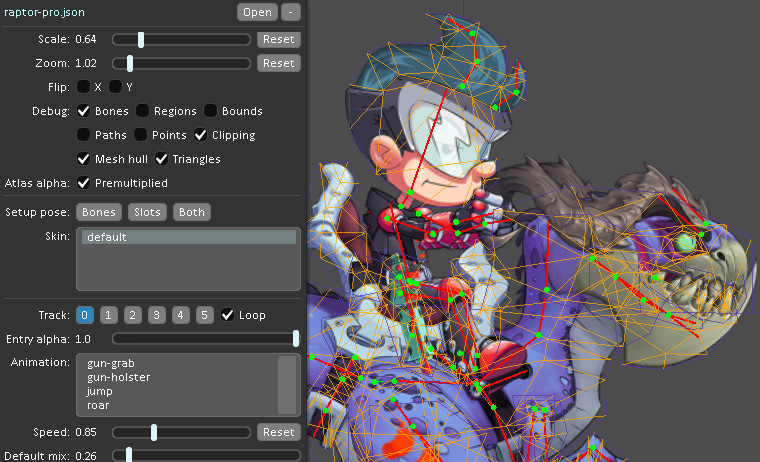
Skeleton Viewer uses the [spine-libgdx](/git/spine-runtimes/tree/spine-libgdx) runtime, which is the reference Spine runtime upon which all others are based. Even if you aren't using spine-libgdx, if you are having a problem with how your skeletons are rendered at runtime, then the Skeleton Viewer can help to determine if the problem is in spine-libgdx, the runtime you are using, or in your application.
The source code for Skeleton Viewer is [provided](/git/spine-runtimes/spine-libgdx/spine-skeletonviewer/src/com/esotericsoftware/spine/SkeletonViewer.java) and can be used as the basis for application-specific tools.
# Run from Spine
Skeleton Viewer can be run from Spine by using the `--skeleton-viewer` or `--sv` [command line](/spine-command-line-interface) parameters:
```
Spine --skeleton-viewer
```
Spine launcher version 4.1.10+ and Spine editor version 4.1.12+ are required. If the command line parameters are not recognized, ensure your Spine editor version is 4.1.12+ and download the latest launcher from your [Spine license page](/spine-license-recovery).
To run a specific version of Skeleton Viewer, use the `--update` or `-u` parameters:
```
Spine --update 4.1.12 --skeleton-viewer
```
## Run from Spine Trial
Skeleton Viewer can also be run from the [Spine Trial](/spine-download) by using the `--skeleton-viewer` or `--sv` [command line](/spine-command-line-interface) parameters:
```
SpineTrial --skeleton-viewer
```
The Spine Trial is always the latest version of Spine, so the Skeleton Viewer version cannot be changed to older versions.
# Run standalone
Running from Spine is the preferred way to run Skeleton Viewer, but it can also be downloaded separately and run from a command line.
## Download
Download the Skeleton Viewer as a JAR file:
$downloadLinks$
[Skeleton Viewer 4.1.24](/files/sv/skeletonViewer-4.1.24.jar)
[Skeleton Viewer 4.0.64](/files/sv/skeletonViewer-4.0.64.jar)
[Skeleton Viewer 3.8.99](/files/sv/skeletonViewer-3.8.99.jar)
[Skeleton Viewer 3.7.94](/files/sv/skeletonViewer-3.7.94.jar)
[Skeleton Viewer 3.6.53](/files/sv/skeletonViewer-3.6.53.jar)
[Skeleton Viewer 3.5.51](/files/sv/skeletonViewer-3.5.51.jar)
[Skeleton Viewer 2.1.27](/files/sv/skeletonViewer-2.1.27.jar)
Choose the version that matches the version of the Spine editor you have exported your data from. If you need other versions of the Skeleton Viewer, [run from Spine](#Run-from-Spine) or browse the [Git history](/git/spine-runtimes/tree/spine-libgdx/spine-skeletonviewer) and run it from source.
## Java
Java version 9+ is required to run Skeleton Viewer standalone. It is not necessary to "install" Java. Instead, download the latest version of Java for your OS from [Adoptium](https://adoptium.net/temurin/releases/) or [Zulu](https://www.azul.com/downloads/?package=jdk#download-openjdk) (not from Oracle), extract it to a folder, and run the Java executable found in the `bin` folder.
## Run command
Run Skeleton Viewer standalone from the command line like this:
```
java -jar skeletonViewer.jar
```
# Loading data
The `Browse` button is used to open a JSON or binary data file that has been exported from Spine. A data file can also be dragged and dropped on the Skeleton Viewer window.
Both the trial and full versions of Spine are accompanied with [example projects](/spine-examples) that can be exported and opened by Skeleton Viewer. Export files can also be found in the [spine-runtimes](/git/spine-runtimes/tree/examples) Git repository.
Skeleton Viewer looks for a texture atlas with the same name, next to the chosen data file. For example, if `raptor.json` is opened, it will look for `raptor.atlas`. If the atlas is not found, translucent white squares will be used instead of images.
Skeleton Viewer monitors the data and atlas files and automatically reloads them if they are changed externally.
If you are running Skeleton Viewer from the command line, you can directly specify the skeleton `.json` or `.skel` to open:
```
java -jar skeletonViewer.jar path/to/skeleton.json
```
# Using Skeleton Viewer
The chosen skeleton is loaded and shown in the black area on the right. Click and drag in this area to move the skeleton. The `Scale`, `Flip` and `Debug` controls can be used to better visualize the different parts of the skeleton.
If the images have a dark edge or otherwise don't appear correctly, try checking or unchecking `Premultiplied`. When checked, rendering expects the atlas to have been created using premultiplied alpha.
The animation selected in the `Animation` list will be played. Selecting a different animation will use [AnimationState](/spine-using-runtimes#AnimationState) to cross fade to the new animation. The `Mix` slider controls the cross fade duration in seconds.
The `Setup Pose` buttons resets the bones, slots or both to the setup pose. This is the same as calling `setBonesToSetupPose` or `setSlotsToSetupPose`. When an animation makes changes to a skeleton, the changes persist until your code or another animation changes them. Since an animation only makes changes to the parts of a skeleton it has keys for, the result may be that an animation unintentionally affects another. See [Animation changes](/spine-using-runtimes/#Animation-changes) for more.