# Export
Spine project files can be exported using the UI or the [command line interface](/spine-command-line-interface). Our [export scripts](https://github.com/EsotericSoftware/spine-scripts/tree/master/export) can automate exporting many projects at once.
Spine can export a single image, sequence of images, video, and JSON or binary data.
To open the export dialog, choose `Export` from the main menu or press `ctrl+E` (`cmd+E` on Mac).
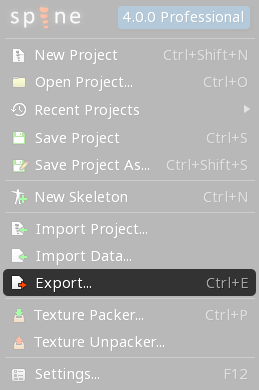
To repeat the last export, press `ctrl+shift+E` (`cmd+shift+E` on Mac).
# Data
Spine can export skeleton data as JSON or binary. This data can then be loaded by our [Spine Runtimes](/spine-runtimes) and displayed in your applications just as it is in Spine.
For these reasons it is recommended to write scripts that automate exporting all of your Spine projects using the [command line interface](/spine-command-line-interface).
Data export transforms the data in the Spine project file to a format that can be read by the Spine Runtimes. The version of the Spine editor used to export must match the version of the Spine Runtimes. When the Spine Runtimes are updated to a newer version, the data must be exported from the Spine project file again. For this reason it is important to keep your Spine project files safe. See [versioning](/spine-versioning) for more information.
Data export creates a data file for each skeleton in the project. It is not possible to export only a single skeleton, only part of a skeleton, or individual animations.
## JSON
If the size of the data file is important, use binary.
If the speed the data file is loaded at runtime is important, use binary.
JSON data is much larger than binary and loading JSON data is much slower, so generally using binary data in your applications is preferred. However, JSON is human readable and it is easy to write tools to parse and manipulate the data, if needed.
It is perfectly reasonable to export to JSON, process the JSON data, then [import](/spine-import) the data back into a Spine project. When doing so, be sure that [Nonessential data](#Nonessential-data) is checked.
See [JSON format](/spine-json-format) for more information.
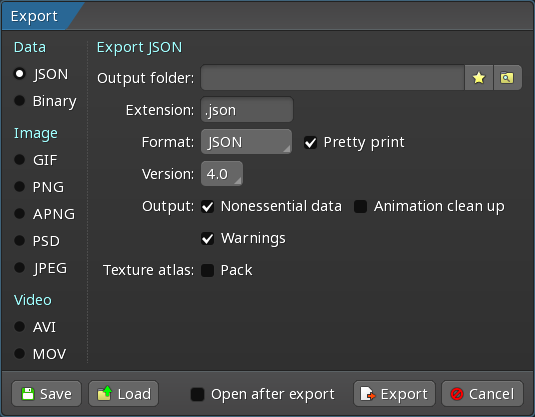
!table Setting, Description
!row Output folder
A JSON file will be created in this folder for each skeleton in your project. The name of the file will use the name of the skeleton.
!row Extension
The JSON files will use this file extension.
!row Format
Spine can optionally write in JSON-like formats that are slightly smaller, easier to read, and easier to edit.
* `JSON` Standard JSON.
* `JavaScript` Like JSON, but names are only quoted if necessary. The data is valid JavaScript.
* `Minimal` Like JSON, but most names and values are not quoted. This format requires a lenient JSON parser, such as the one in [libgdx](http://libgdx.com/).
!row Pretty print
When checked, the JSON is formatted to be more easily read by humans. This makes the file slightly larger.
!row Version
If an older JSON version is chosen, Spine attempts to write data compatible with that older version of the Spine Runtimes. In many cases this is not possible, data will be lost, and warnings will be shown.
Exporting to older versions is intended only as a last resort to partially recover work when a project was accidentally saved with a newer version of Spine. See [recovering work](/spine-versioning#Recovering-work-from-a-newer-version) for more information.
!row Nonessential data
When checked, additional data is included in the JSON data that is not usually needed at runtime. This makes the file slightly larger. This data is used if the JSON data is imported back into Spine. See [import](/spine-import#Nonessential-data) for more information.
!row Animation clean up
When checked, animation [clean up](/spine-keys#Clean-Up) is performed for the exported data. This does not modify the project file.
!row Export all
When checked, Spine will include items that have `Export` unchecked.
!row Warnings
When checked, Spine will show any warning messages after exporting.
!row Pack
When checked, a texture atlas is packed during the data export. See [packing during data export](/spine-texture-packer#Packing-during-data-export) for more information.
!table
## Binary
Binary data is much smaller than JSON and it is very fast to parse at runtime. However, it is not human readable and it is not easy to write tools to parse and manipulate the data.
See [binary format](/spine-binary-format) for more information.
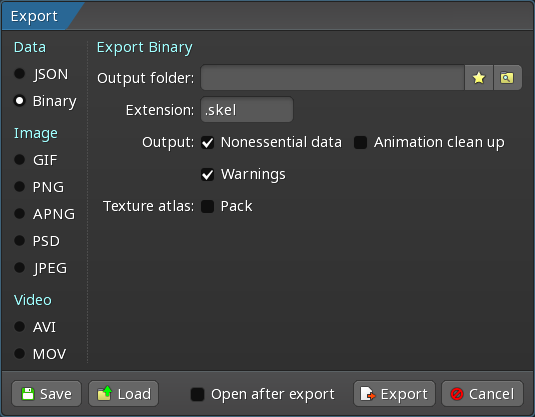
!table Setting, Description
!row Output folder
A binary file will be created in this folder for each skeleton in your project. The name of the file will use the name of the skeleton.
!row Extension
The binary files will use this file extension.
!row Nonessential data
When checked, additional data is included in the binary data that is not usually needed at runtime. This makes the file slightly larger. This data is used if the binary data is imported back into Spine. See [import](/spine-import#Nonessential-data) for more information.
!row Animation clean up
When checked, animation [clean up](/spine-keys#Clean-Up) is performed for the exported data. This does not modify the project file.
!row Warnings
When checked, Spine will show any warning messages after exporting.
!row Pack
When checked, a texture atlas is packed during the data export. See [packing during data export](/spine-texture-packer#Packing-during-data-export) for more information.
!table
# Images
## GIF
Spine can export animated GIFs, making it easy to share animations on the internet. GIF is an image format with only 256 colors, so some loss of quality may occur. GIF also doesn't support translucency, so pixels can only be either opaque or transparent.
Spine's GIF export is very sophisticated and produces the highest quality GIFs that are possible, but does not prioritize for a small file size.
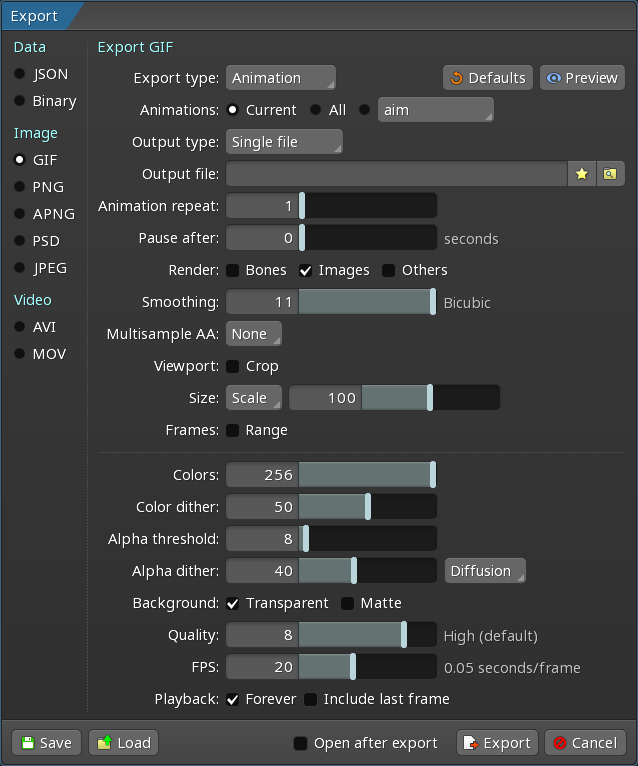
See [common settings](#Common-settings).
!table Setting, Description
!row Colors
The maximum number of colors in the GIF.
!row Color dither
The amount of dither to apply to the GIF colors. Dither disperses the colors to prevent hard edges in gradients.
!row Alpha threshold
Alpha values below this value are treated as 0. Set to zero if your slots have [additive blending](/spine-slots#Blending).
!row Alpha dither
The amount of dither to apply to the GIF transparency. Dither disperses transparency to prevent hard edges. The type of dispersion and how the alpha range is used can be chosen for the best results with your images. Set to zero if your slots have [additive blending](/spine-slots#Blending).
!row Background
The background color to use.
!row Transparent
When checked, completely transparent pixels will be transparent instead of the background color. When unchecked, the specified color is used for the background of the GIF.
!row Matte
Translucent pixels are made opaque using the matte color.
!row Quality
Higher quality produces better colors but takes longer to export.
!row FPS
The number of frames per second for the GIF animation. 50 generally provides the [best results](/support#Why-does-my-exported-GIF-play-back-at-a-different-speed-than-in-Spine).
!row Forever
When checked, the animation is looped continuously.
!row Include last frame
When unchecked, the last frame of each animation is omitted. Unchecking this is useful for looping animations where the first and last frame are identical -- the same frame would be exported twice when this setting is checked.
!table
## PNG
Spine can export PNG image files. PNG is a lossless image format that supports transparency, so no loss of quality will occur.
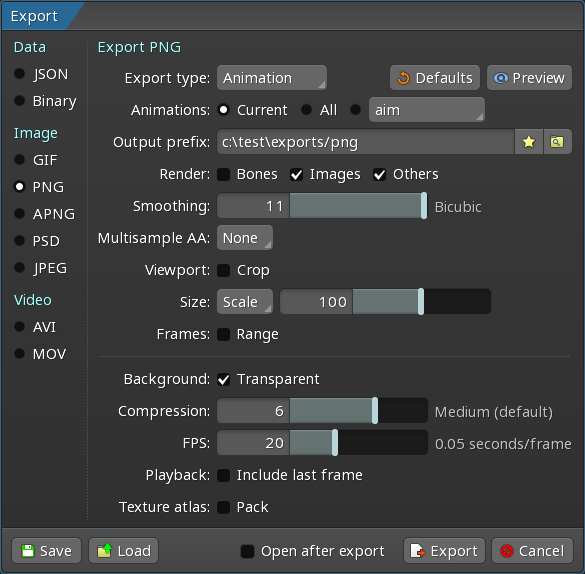
See [common settings](#Common-settings).
!table Setting, Description
!row Background
The background color to use.
!row Compression
Higher compression produces smaller files but takes longer to export.
!row FPS
The number of frames per second for the PNG sequence.
!row Include last frame
When unchecked, the last frame of each animation is omitted. Unchecking this is useful for looping animations where the first and last frame are identical -- the same frame would be exported twice when this setting is checked.
!row Pack
When checked, the exported images are packed into a texture atlas. This is convenient but running the texture packer separately provides more control over the packing. See [texture packing](/spine-texture-packer#Packing) for more information.
!table
## APNG
Spine can export APNG image files. APNG is a lossless animated image format that supports transparency, so no loss of quality will occur. It is supported by most modern browsers and has much higher quality than GIF, but the file size is usually larger.
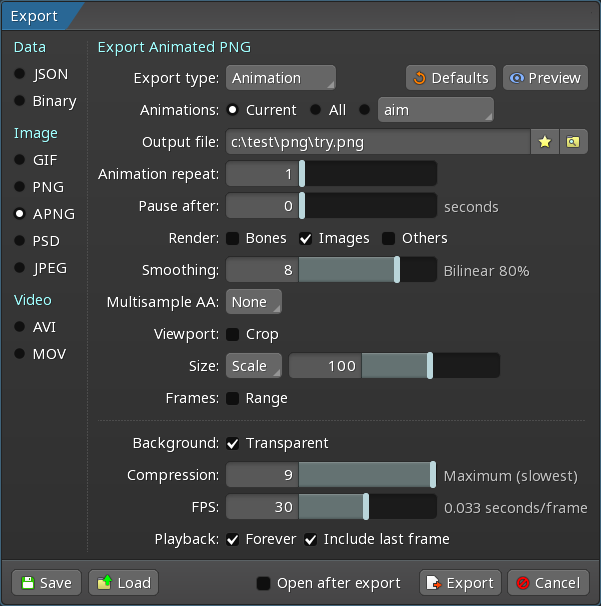
See [common settings](#Common-settings).
!table Setting, Description
!row Background
The background color to use.
!row Transparent
When checked, the background of the APNG is set to transparent.
!row Compression
Higher compression produces smaller files but takes longer to export.
!row FPS
The number of frames per second for the PNG sequence.
!row Forever
When checked, the animation is looped continuously.
!row Include last frame
When unchecked, the last frame of each animation is omitted. Unchecking this is useful for looping animations where the first and last frame are identical -- the same frame would be exported twice when this setting is checked.
!table
## PSD
It can be very useful to export the current pose in the middle of an animation as layers in a PSD so you can more easily redraw attachment images for that pose.
Spine can export Adobe Photoshop PSD image files. A layer for each animation frame will be created inside the PSD file.
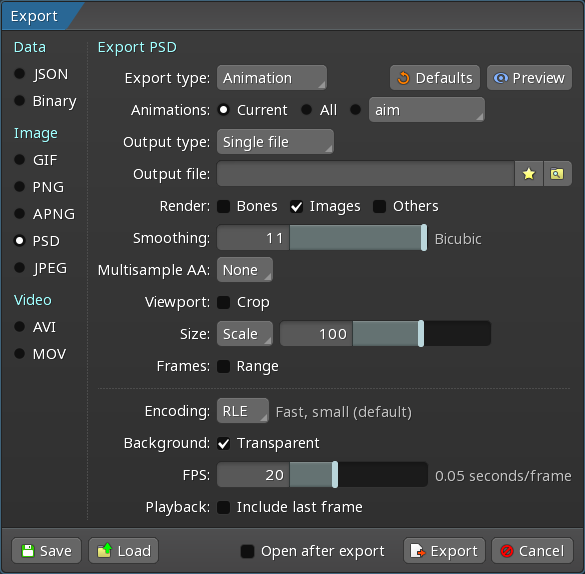
See [common settings](#Common-settings).
!table Setting, Description
!row Background
The background color to use.
!row Transparent
When checked, the background of the images within the PSD is set to transparent.
!row Encoding
The type of compression to use to create the PSD.
* `RAW` An uncompressed format. Encoding is fast but the exported PSD is very large.
* `RLE` Encoding is fast and the exported PSD is small.
* `ZLIB` Encoding is slow and the exported PSD is very small.
!row FPS
The number of frames per second for the PSD image sequence.
!row Include last frame
When unchecked, the last frame of each animation is omitted. Unchecking this is useful for looping animations where the first and last frame are identical -- the same frame would be exported twice when this setting is checked.
!table
## JPEG
Spine can export JPEG images. JPEG is a lossy image format that does not support transparency, so some loss of quality may occur depending on the specified quality.
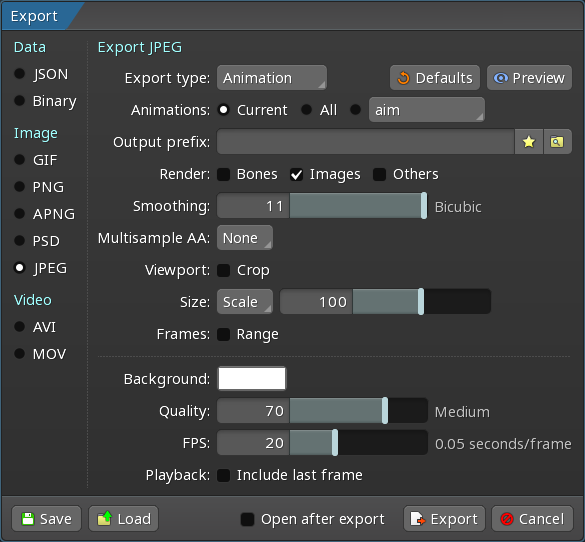
See [common settings](#Common-settings).
!table Setting, Description
!row Background
The background color to use.
!row Quality
Higher quality produces better images but the file sizes are larger.
!row FPS
The number of frames per second for the JPEG sequence.
!row Include last frame
When unchecked, the last frame of each animation is omitted. Unchecking this is useful for looping animations where the first and last frame are identical -- the same frame would be exported twice when this setting is checked.
!table
# Video
## AVI
Please note that video playback support varies for different resolutions and encodings. Some video playback software is unable to play some video files, while other software can play them just fine.
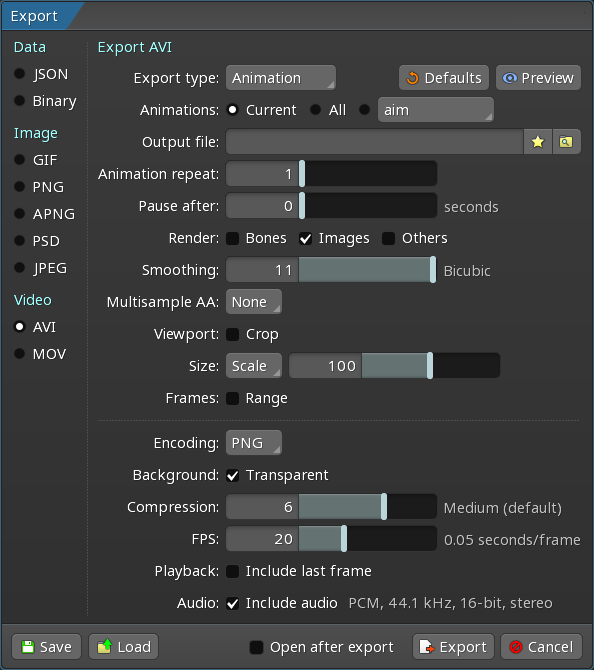
Spine can export AVI video files. The RAW and PNG encodings for AVI files support transparency, which can be a convenient way to bring Spine animation into other software using a single file.
See [common settings](#Common-settings).
!table Setting, Description
!row Encoding
The codec to use to encode the AVI video.
!row Background
The background color to use.
!row Compression
Higher compression produces smaller files but takes longer to export.
!row Quality
For the JPEG-based codec, higher quality produces better images but the file sizes are larger.
!row FPS
The number of frames per second for the AVI video.
!row Forever
When checked, the animation is looped continuously.
!row Include last frame
When unchecked, the last frame of each animation is omitted. Unchecking this is useful for looping animations where the first and last frame are identical -- the same frame would be exported twice when this setting is checked.
!table
## MOV
Please note that video playback support varies for different resolutions and encodings. Some video playback software is unable to play some video files, while other software can play them just fine.
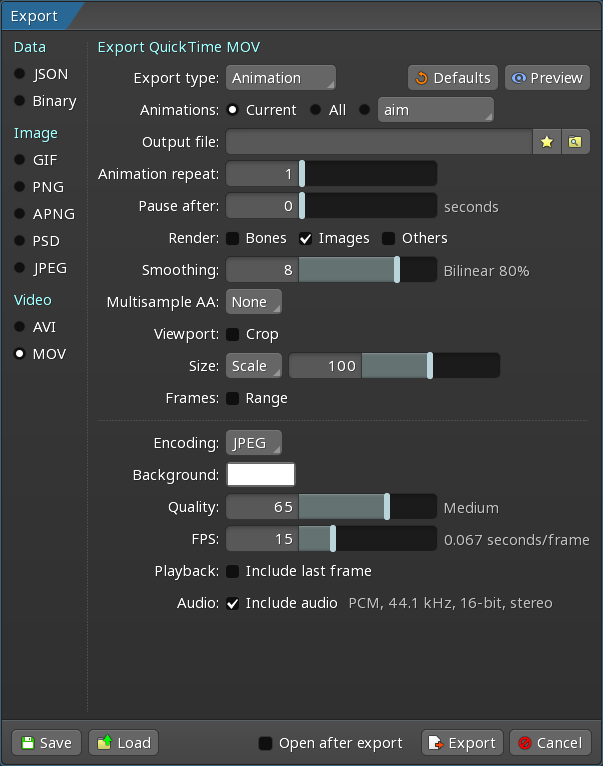
Spine can export QuickTime MOV video files. The RAW and PNG encodings for MOV files support transparency, which can be a convenient way to bring Spine animation into other software using a single file.
See [common settings](#Common-settings).
!table Setting, Description
!row Encoding
The codec to use to encode the MOV video.
!row Background
The background color to use.
!row Transparent
When checked, the background of the MOV video is set to transparent.
!row Compression
Higher compression produces smaller files but takes longer to export.
!row Quality
For the JPEG-based encoding, higher quality produces better images but the file sizes are larger.
!row FPS
The number of frames per second for the MOV video.
!row Forever
When checked, the animation is looped continuously.
!row Include last frame
When unchecked, the last frame of each animation is omitted. Unchecking this is useful for looping animations where the first and last frame are identical -- the same frame would be exported twice when this setting is checked.
!table
# Common settings
Most image and video exports have these settings. See the specific export section for other export settings.
!table Setting, Description
!row Defaults
Resets all the export settings to the defaults.
!row Preview
Opens the preview panel for the export dialog.
!row Export type
Either animations or the current skeleton pose are exported.
!row Skeletons
All skeletons are rendered together in the same export, in separate exports, or only the chosen skeleton is exported.
!row Animations
The current animation, all the animations, or the chosen animation is exported.
!row Skins
The currently visible skins, all the skins, or all skins plus the skeleton without any skin active are exported.
!row Output type
Either creates a single file, a file per frame, a file per animation, a single file with multiple layers, or a single file with one frame.
!row Output file
The file to write (when a single file is exported).
!row Output folder
The folder where files will be written, including the beginning of the file name for each file (when multiple files are exported).
!row Output prefix
The folder where files will be written (when multiple files are exported).
!row Maximum bounds
When checked, each exported file will have the same dimensions.
!row Animation repeat
The number of times to play each animation.
!row Pause after
The number of seconds to pause after playing each animation.
!row Bones
When checked, skeleton bones will be rendered.
!row Images
When checked, skeleton mesh and region attachments will be rendered.
!row Others
When checked, other skeleton attachments will be rendered.
!row Smoothing
Controls how much smoothing is applied to the image. Smoothing is a way of blurring the image to hide the pixel structure when upscaling, meaning when images are displayed larger than their actual size.
* 0 disables smoothing, nearest neighbor filtering is used. This can be useful for pixel art.
* 1-10 uses linear filtering between 10% and 100%.
* 11 uses bicubic filtering. This may be sharper and preserve details slightly better than linear filtering.
When smoothing is greater than zero, exports are affected by the `Anisotropic filtering` checkbox in the `Viewport` section of the [Spine settings](/spine-settings#Smoothing). Enabling anisotropic filtering may improve export quality.
!row Multisample AA
The number of samples for multisample anti-aliasing (MSAA). See [hull edges](/spine-meshes#Hull-edges).
!row Crop
When checked, the specified bounds are exported rather than using the skeleton's bounds. The first two numbers are X and Y world coordinates. The next two numbers are the width and height of the area to export. When enabled, the bounds can be adjusted by dragging the orange corners in the preview panel.
!row Size
The type of resizing to perform.
!row Scale
The relative scale of the image as a percentage.
!row Fit
When selected, the output image will fit within the specified pixel values.
!row Enlarge
When checked and the image is smaller than the specified size, the image is proportionally stretched until one of the sides matches the specified size.
!row Pad
When checked, additional space is added to the image to match the specified size.
!row Range
When checked, only the specified range of frames will be exported.
!row Warm Up
The number of times to play each animation before export, allowing physics to start in motion.
!table
# Preview panel
The preview panel shows a preview of the export.
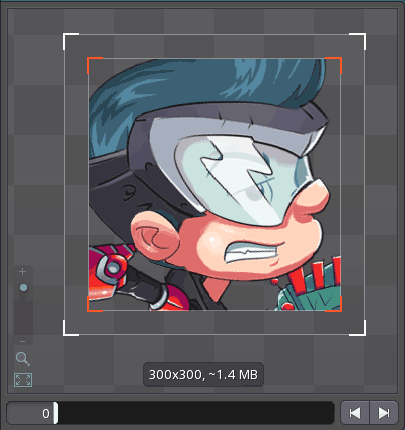
The frame slider and arrows at the bottom allow choosing the frame to preview. These frames may not correspond to the frames shown on the timeline in the Spine editor, as they depend on the FPS specified in the export settings.
A white box shows the bounds of the export. When `Crop` is checked, the bounds have orange corners that can be dragged and the box can be dragged to set the bounds for cropping.
The dimensions of the frame are shown in pixels along with an estimated file size for the export.
The edges of the preview panel can be dragged to resize the preview area.
# Additive blending
When a slot uses additive [blending](/spine-slots/#Blending), its attachment is rendered additively when the image or video has a background color. If the background is transparent, the attachment is rendered additively when over other images, but it is not rendered additively where it is over the transparent background. If the attachment image uses opaque black, the black will be seen where it is over the transparent background. To avoid this, use transparent instead of opaque black.
# Saving and loading export settings
Storing export files alongside your Spine project files can be useful to ensure exports are consistent. You can also save multiple files for specific outputs, such as sticker exports, along your game engine export settings.
The current export settings configuration can be saved as a JSON file by pressing the `Save` button in the lower left corner of the export window. This will store all the information currently displayed in the export dialog.
The saved JSON file can be then loaded by pressing the `Load` button in the lower left corner of the export window.
# Disabling export
Skeletons, animations, attachments, and skins have an `Export` property that can be unchecked to exclude them from exports. For example, this is useful to use a skeleton or attachment as a background or animation reference.
To do so, select a skeleton, skin, or attachment in the tree, then uncheck `Export` in the properties at the bottom of the tree.

If an attachment is not exported but it is keyed in animations, the keys will not be exported. If a mesh is not exported, any linked meshes will also not be exported.
[Next: Texture packing](/spine-texture-packer)
[Previous: Versioning](/spine-versioning)
[Spine User Guide: Table of Contents]