!!
# Spineboy
Spineboy is a complex example project demonstrating the use of many Spine features, including [meshes](/spine-meshes), [IK](/spine-ik-constraints), [transform constraints](/spine-transform-constraints), and [clipping](/spine-clipping). Below, we focus on the setup of the skeleton.
## Hip
The `hip` bone is the root of Spineboy's body bone hierarchy. Spineboy's legs use IK constraints which target bones on the same hierarchy level as the `hip` bone. This is done so Spineboy can be moved independently from the IK target bones. Were we to use the `root` bone as Spineboy's hip, we could not move the hip without moving the IK target bones. The below GIF illustrates this using a simplified setup.
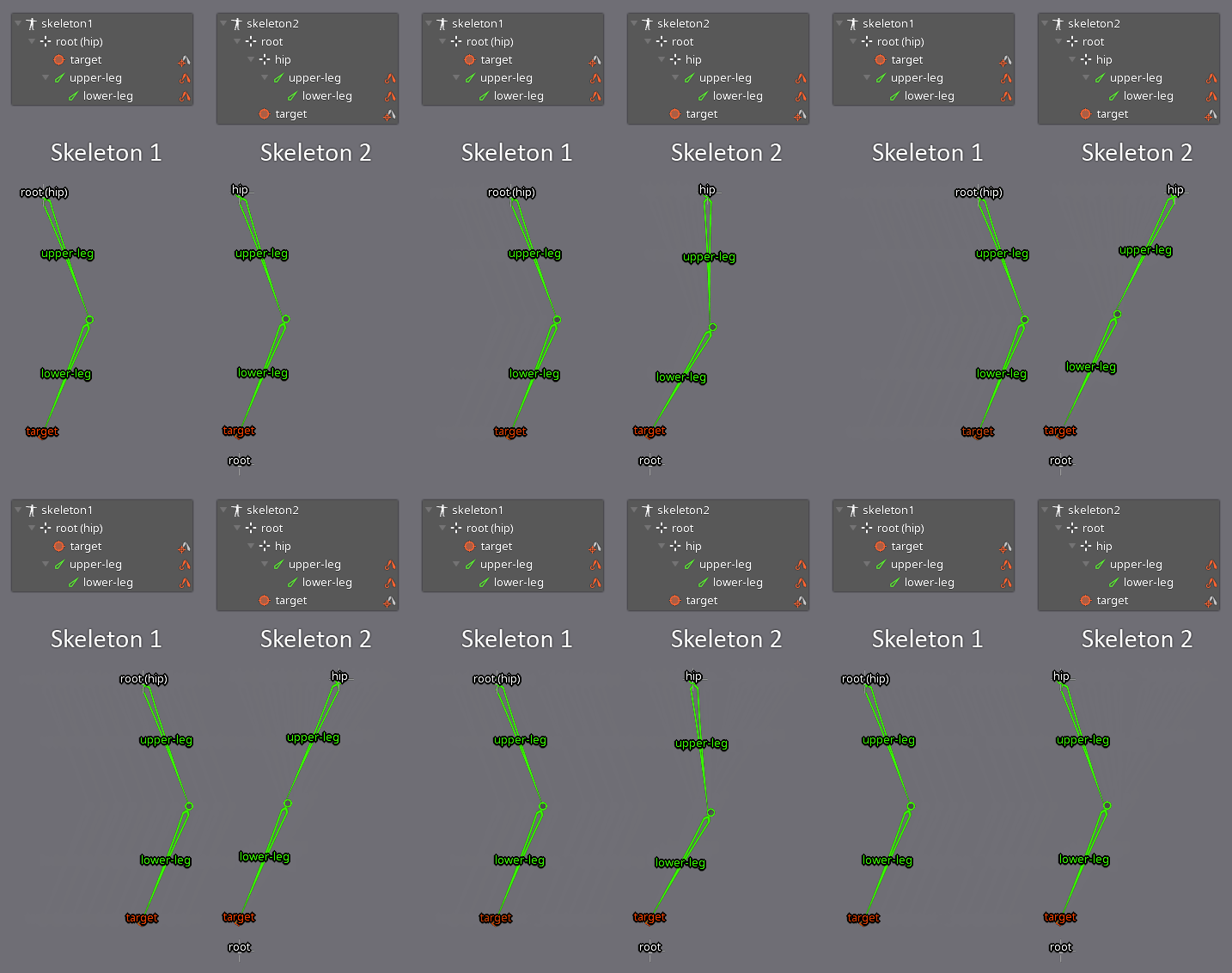
To the left, the skeleton root bone is used as the hip. Moving that root bone also moves the IK targets. To the right, the hip bone is a separate bone and attached to the root bone. The IK targets are siblings. Moving the hip bone does not move the IK targets.
## Legs
Spineboy's legs are driven by IK constraints, which is commonly used to keep a biped's feet firmly planted to the ground while the upper body moves. IK is also a great way to efficiently simulate the bending behavior of legs and ankles.
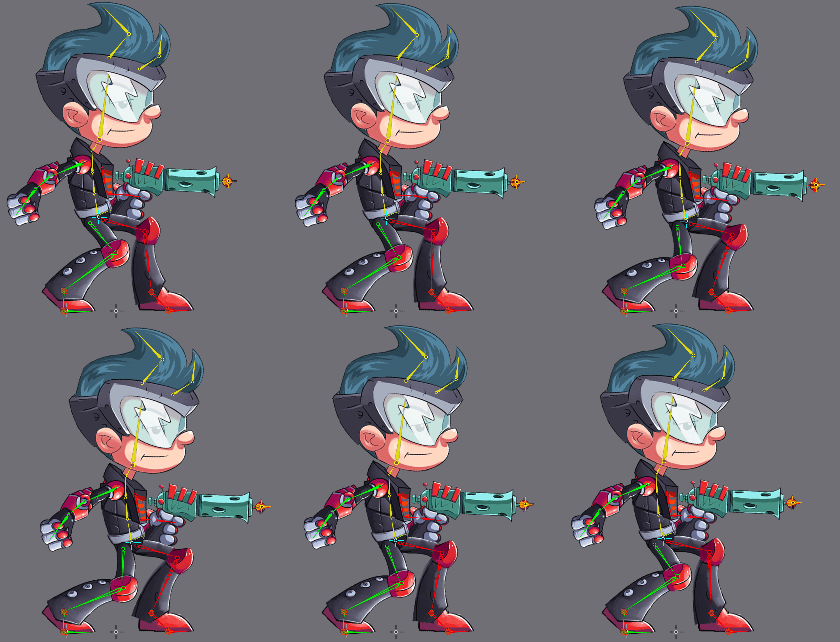
Spineboy's front and back legs are setup in the same way. For brevity, we will only discuss the front leg in detail.
The two-bone IK constraint `front-leg-ik` controls the leg's `front-thigh` and `front-shin` bones, while the single-bone IK constraint `front-foot-ik` drives the `front-foot` bone. Note that the order in which those two IK constraints are applied to the bones is important. We first apply the `front-leg-ik` constraint and then the `front-foot-ik` constraint. The order in which constraints are applied is defined by their [position](/spine-constraints#Order) in the `Constraint` node of the [tree view](/spine-tree).
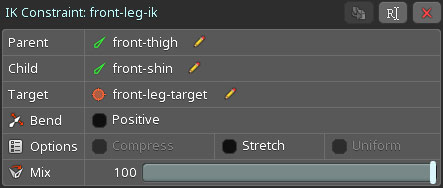
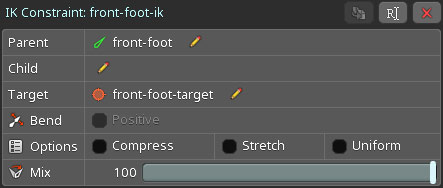
Each IK constraint ensures that the constrained bones point at their respective target bones. The `front-leg-ik` constraint targets the `front-leg-target` bone, while the `front-foot-ik` constraint targets the `front-foot-target` bone.
To make the foot bend when the ball of the foot is rotated, the `front-leg-target` bone is parented to the `front-foot-ik` bone. When the `front-foot-ik` bone is rotated, the `front-leg-ik` is transformed as well.
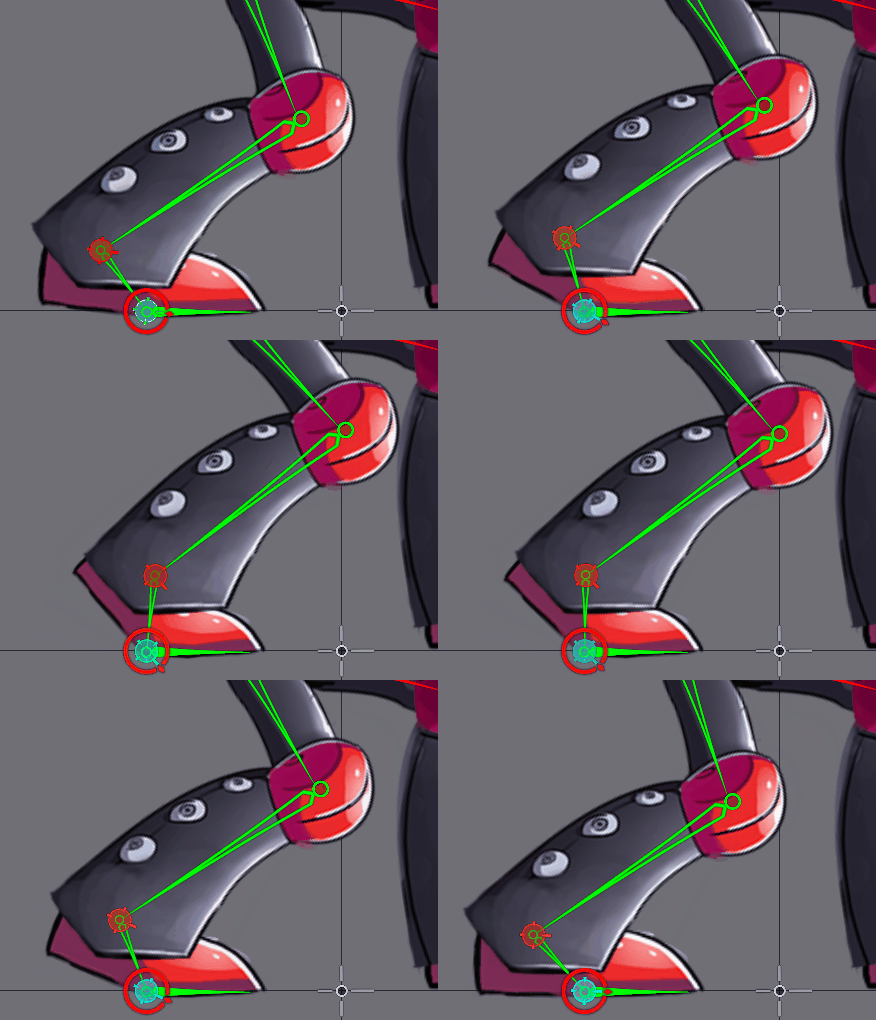
At the tip of the foot, we have the `front-foot-tip` bone. This bone is not affected by any IK constraints. We also disabled `Inherit Rotation` on `front-foot-tip` to ensure the foot doesn't go through the ground when rotating its parent bone.
## Hoverboard
Spineboy comes equipped with a hoverboard, as can be seen in the `hoverboard` animation. To ensure Spineboy doesn't fall off his hoverboard, we use two transform constraints: `front-foot-board-transform` and `rear-foot-board-transform`. For brevity, we'll only discuss the front foot transform constraint, as the rear foot constraint works in the same way.
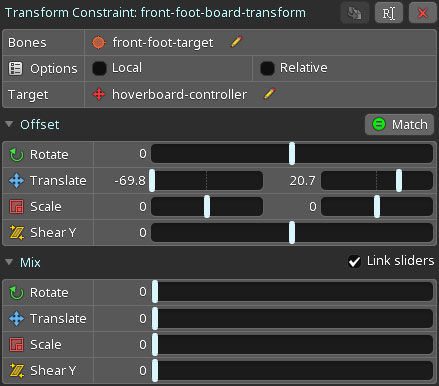
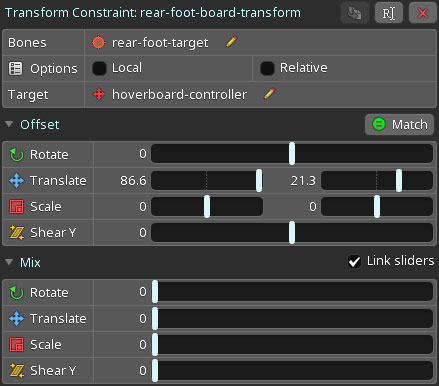
The `front-foot-board-transform` constraint constrains the `front-foot-target` bone, which is responsible for transforming the front foot of Spineboy via an IK constraint. Since this transform constraint is applied after the IK constraint, it overrides the effects of the IK constraint to take control of the front foot. The front foot is placed on the hoverboard by setting appropriate values for the the transform constraint's `Translate` offset using [Match](/spine-transform-constraints#Match).
The `front-foot-board-transform` constraint targets the `hoverboard-controller` bone. The `hoverboard-controller` bone is a child of the `root` bone and is used to move the hoverboard around.
The `Mix` values of the transform constraint are set to `0` in the setup pose. This means that by default, the transform constraint does not affect the bone it constrains, in this case `front-foot-target`.
If we want Spineboy's front foot to be placed on and follow the hoverboard, we can key the `Mix` for the `Translate` component of the transform constraint to `100%`. This is done at the beginning of the `hoverboard` animation. Since the transform constraint is applied with a `100%` mix after the IK constraint, the IK constraint's influence is completely overwritten by the transform constraint. For Spineboy, this means his front foot is firmly attached to the hoverboard for the remainder of the animation.
Using transform constraints like these simplifies animating Spineboy on the hoverboard. Only the the hoverboard needs to be animated, while the legs follow automatically in a natural way.
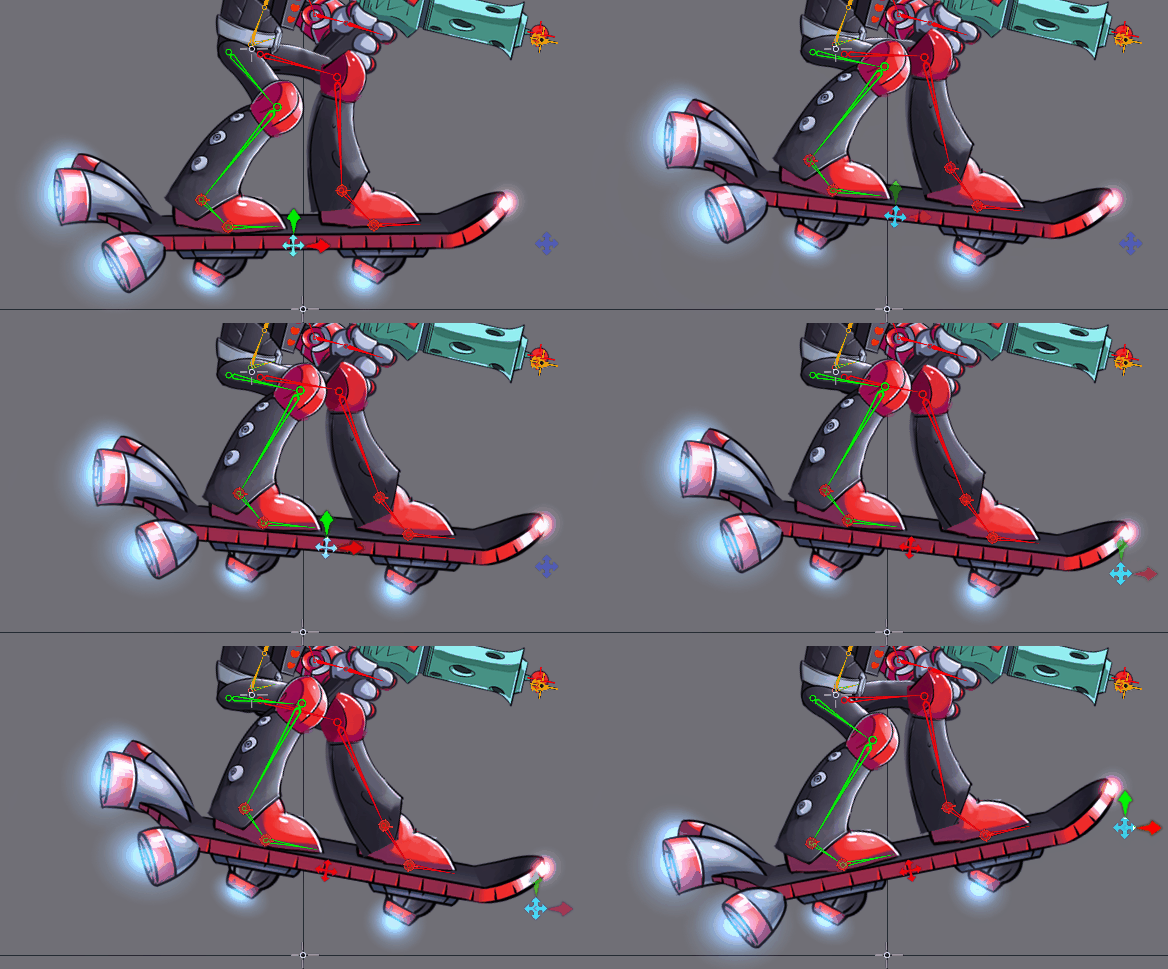
In this animation, the angle of the hoverboard is changed by moving the `board-ik-target` bone at the tip of the hoverboard. It controls the `hoverboard-controller` bone via the single bone IK constraint `board-ik`.
Since the position of the hoverboard defines the position of the feet, we again need to ensure the order in which our constraints are applied is correct. First, we need to apply the `board-ik` IK constraint, since it defines the hoverboard's transform. Only then can we apply the `front-foot-board-transform` constraint, which places the foot on the board. The order in which constraints are applied can be defined in the `Constraints` section of the tree view.
## Aiming
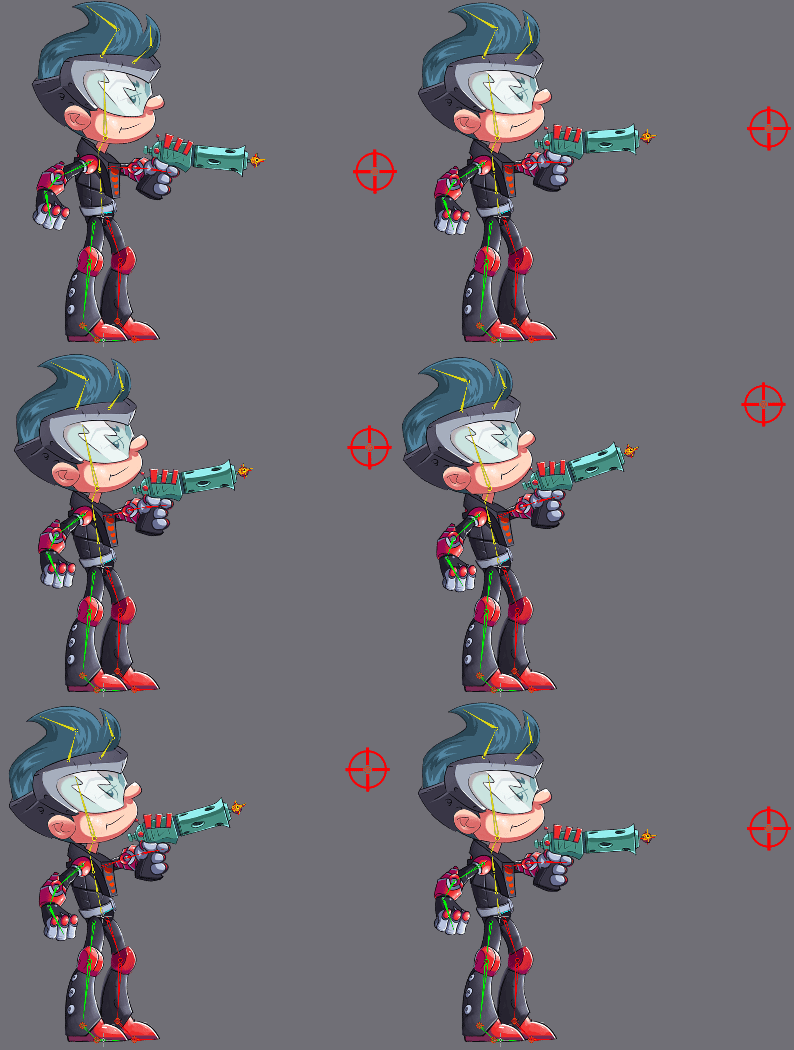
When Spineboy aims, he moves not only his arm holding the gun, but also his torso, head, and front arm. All of this is controlled by a single bone to ease the animation process. It also enables letting Spineboy aim at a point at runtime by programmatically moving the control bone. This is achieved by using another set of constraints.
In [`Animate` mode](/spine-animating), with the `aim` animation active, a bone named `crosshair` appears in the editor viewport area. Spineboy aims at this bone, as seen below.
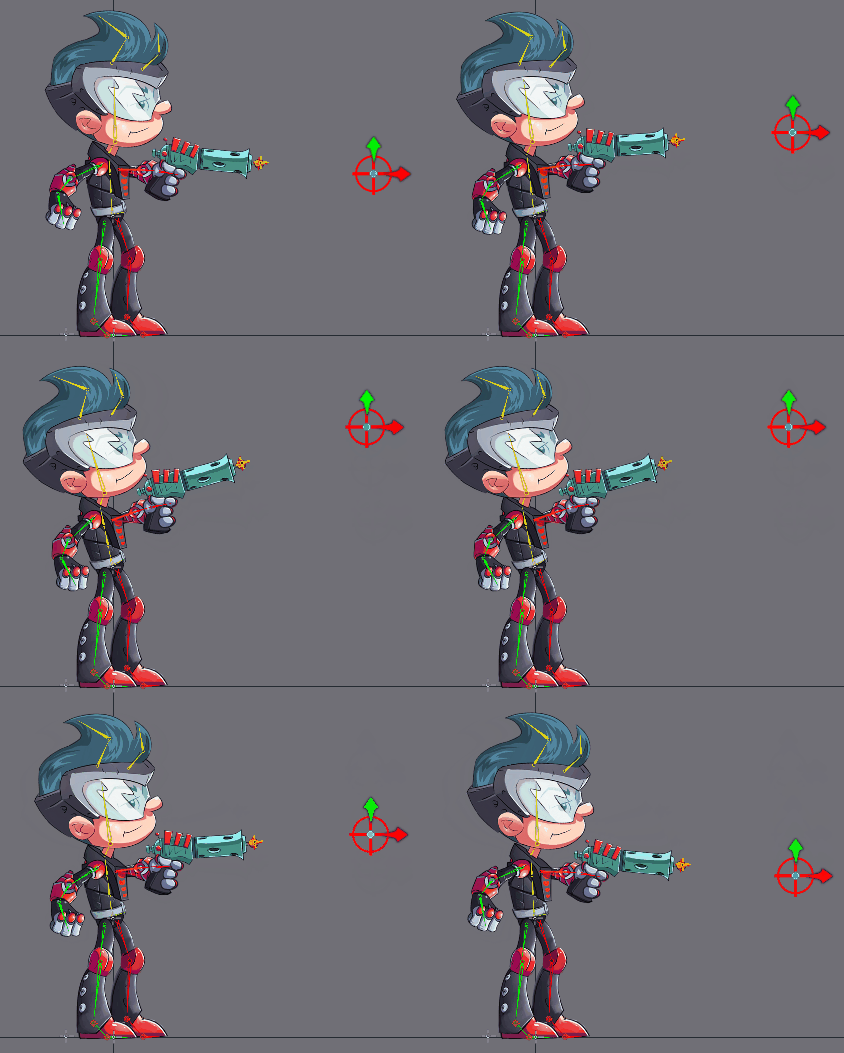
For this effect, we use a single bone IK constraint named `aim-torso-ik`. This constraint drives the `aim-constraint-target` bone, a tiny bone parented to the `hip` bone.
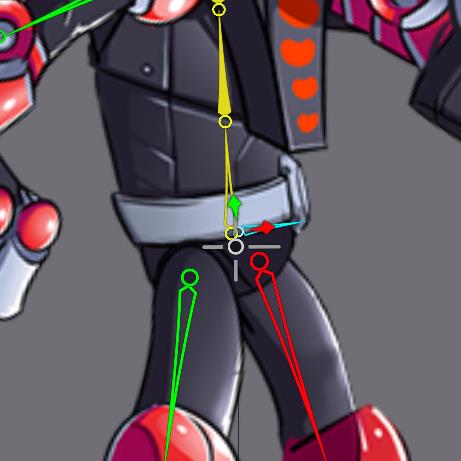
This bone always points at the crosshair and gives us a direction for the three transform constraints `aim-torso-transform`, `aim-head-transform`, and `aim-front-arm-transform`. These three constraints are applied after the `aim-torso-ik` IK constraint.
Each of these transform constraints have different `Offset` values. These control the initial position of all affected bones for the `aim` animation.
The `Mix` values define how much effect the constraint has when moving the `crosshair` bone. For example, we can change the `Mix` on `aim-torso-transform` to `0` to prevent any rotation of the torso.
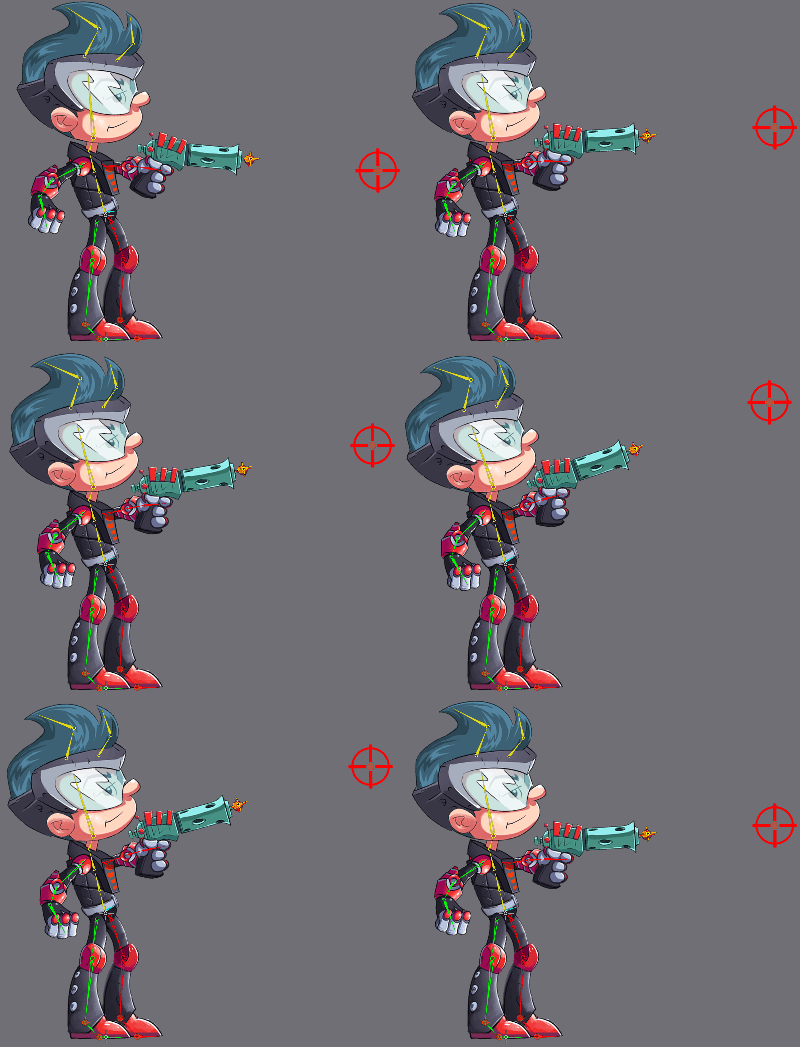
We can also key the `Mix` value to `42.3` to give a little rotation and a more natural feel to the aiming motion of Spineboy.
### Layering the aim animation
The `aim` animation can be layered on top of other animations, for example, to enable Spineboy to aim and run at the same time. The `Preview` view can be used to see the effect of layering multiple animations.
In `Setup` mode, open the [`Preview` view](/spine-preview), select `Track` `0`, then select the `run` animation. Next, select `Track` `1`, then select the `aim` animation. Lower tracks are applied first, so the `run` animation is applied, then the `aim` animation.
While the animation runs in the `Preview` view, select the `crosshair` bone in the editor viewport and move it around. The `Preview` view shows Spineboy aiming at the moving crosshair while running.
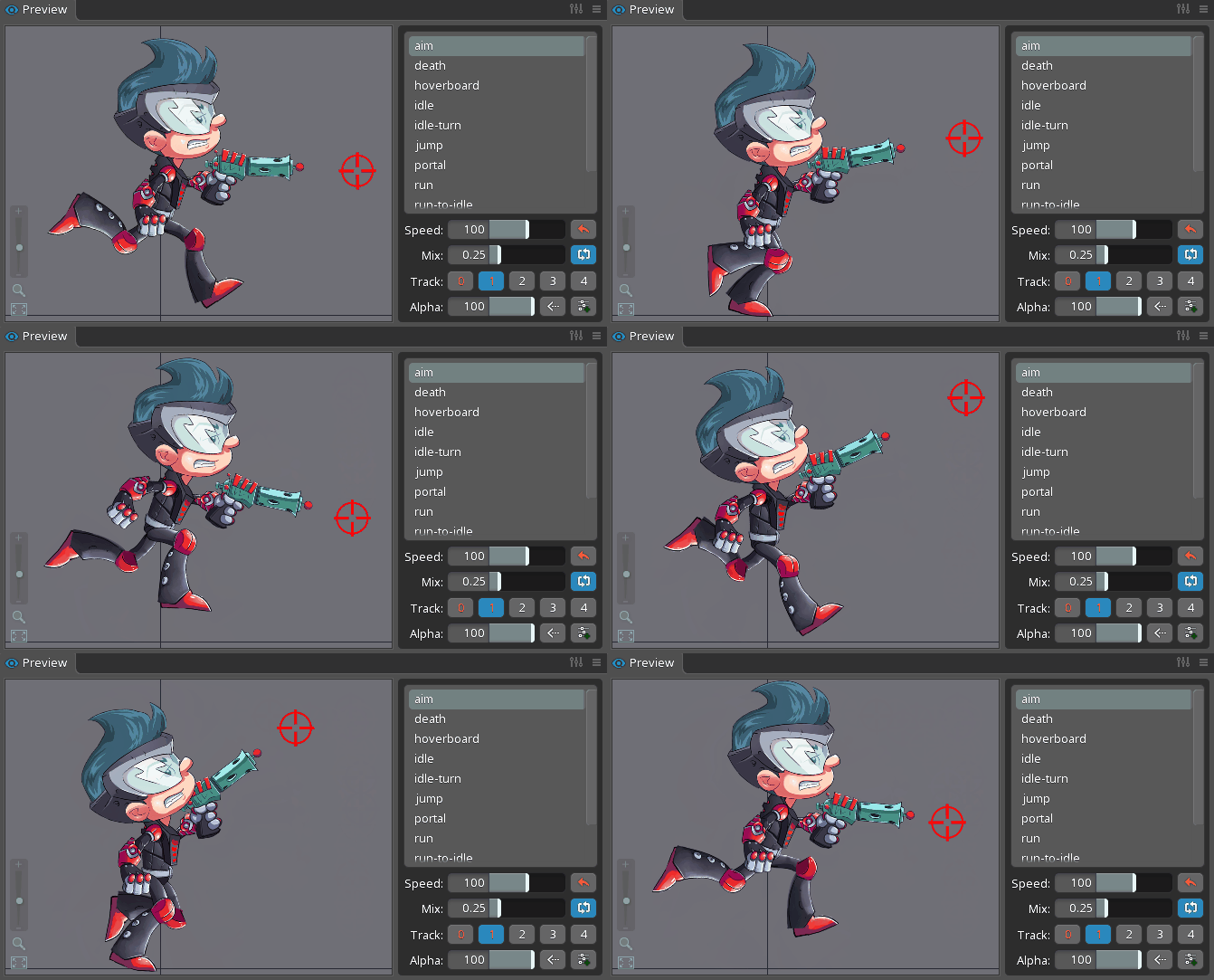
The same can be done in games and applications by using the [Spine Runtimes](/spine-runtimes). The Spine Runtimes let you programmatically playback multiple animations on different tracks and manipulate bones, giving you the same control you have in the Spine editor.
## Portal
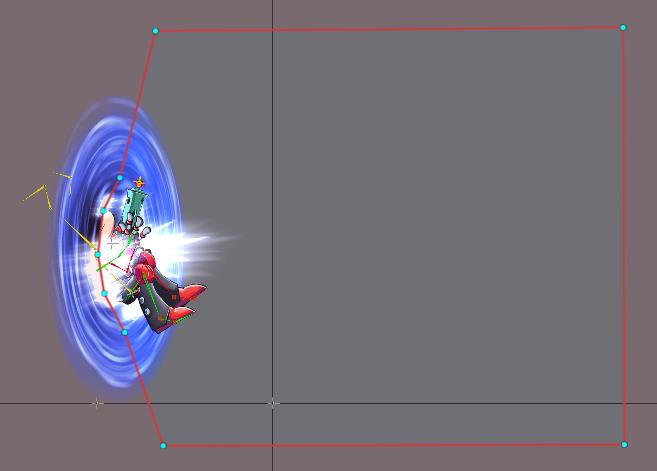
Spineboy's `portal` animation uses non-uniform scaling and clipping to achieve a portal effect.

### Portal setup
The portal is made up of a set of layered images, giving the portal depth.
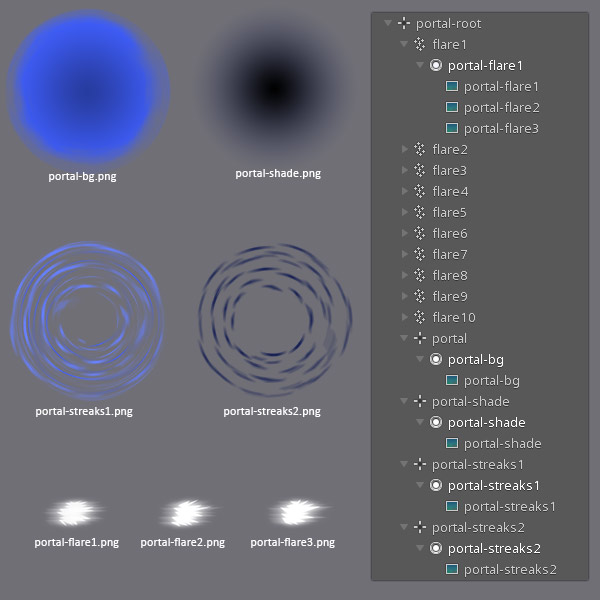
The `portal-bg.png`, `portal-shade.png`, `portal-streaks1.png`, and `portal-streaks2.png` are all circular images, and not elliptical, like they appear in the animation above. If the images were elliptical, they could not be made to appear as if the portal is rotating while keeping their shape.
To achieve the elliptical rotation of the portal, we apply non-uniform scale to the `portal-root` bone, squishing the portal on the X axis. We then apply rotation to the child bones `portal-bg`, `portal-shade`, `portal-streaks1`, and `portal-streaks2`.
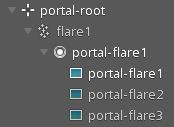
These flare images make up a traditional frame-by-frame animation with 3 frame. The frame-by-frame animation is achieved by keying the visibility of each attachment at the appropriate times in the animation, surrounding Spineboy with sparkly flares when he exits the portal.
### Clipping
Spineboy appears to come out of the portal, with the parts of him inside the portal being invisible. We achieve this by using a clipping attachment.
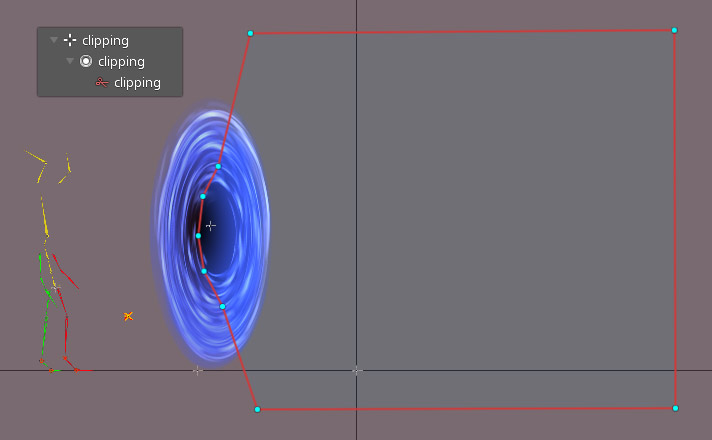
The clipping attachment's polygon defines the area within which Spineboy is visible. Any parts of Spineboy outside this area will be clipped and hence be invisible.
Which parts of the skeleton are affected by the clipping attachment is defined by the clipping attachment's position in the [draw order](/spine-images#Draw-order), and its `End slot` property. Any attachments for slots in the draw order between the clipping attachment slot and the `End slot` will be clipped.
In `Animate` mode, with the `portal` animation being active, scrub through the timeline in the dopesheet to see the effect of the clipping attachment on Spineboy as he goes through the portal.